USB RFID reader can appear to be working normally while failing to detect a single tag. The indicator light is on, the computer recognizes the device, and the application is running, yet nothing happens when a tag is presented.
This problem does not always mean the reader is defective. In many installations, the cause is a tag compatibility issue, an incorrect reader mode, a software configuration error, or a change in the operating environment.
The quickest way to find the cause is to test one part of the system at a time. The following checks are useful for desktop RFID stations, warehouse workstations, employee registration systems, retail applications, and other USB-connected RFID projects.
Check the USB Connection First
Start with the connection between the RFID reader and the computer. A loose cable, faulty USB port, damaged connector, or unstable USB hub can interrupt communication even when the reader’s indicator light is on.
Disconnect the reader and reconnect it directly to another USB port. If possible, use a known-good cable and avoid connecting through an unpowered hub during the initial test.
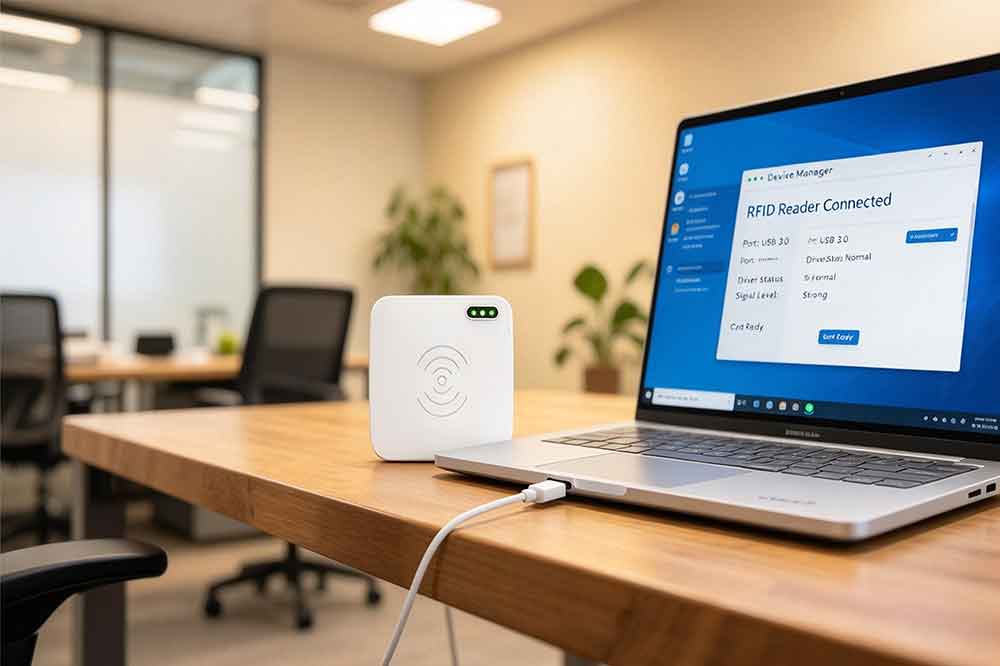
Check whether the operating system recognizes the device. On Windows, open Device Manager and look for the reader under the appropriate device category. Depending on the model, it may appear as a keyboard, a USB input device, a serial device, or a device with a manufacturer-specific name.
If the computer does not recognize the reader, investigate the USB connection, driver requirements, and device compatibility before changing RFID settings.
If the reader is recognized but cannot read tags, continue to the next step.
Confirm That the RFID Tag Matches the Reader
A USB connection cannot make an incompatible RFID tag readable. The reader and tag must support compatible radio frequencies and communication protocols.
Common RFID frequency categories include:
LF (125 kHz or 134.2 kHz): Used in certain access control, identification, and animal identification applications.
HF (13.56 MHz): Common in contactless cards, NFC-related applications, library systems, and many desktop RFID solutions.
UHF (typically 860–960 MHz): Used for inventory, logistics, warehouse tracking, and other applications requiring longer read distances.
These categories are not interchangeable. A 13.56 MHz HF reader will not read a standard UHF inventory tag simply because both are RFID devices.
Even when two products operate at the same frequency, their supported protocols may differ. For example, an HF reader designed for ISO/IEC 14443 cards may not support a tag based on ISO/IEC 15693. Likewise, UHF systems must support the tag’s relevant air-interface protocol.
Check the reader’s datasheet and the tag specifications. Confirm the frequency, protocol, and supported tag types before testing further.
Test With a Known Compatible Tag
When several tags fail, it is tempting to assume the reader is faulty. Before reaching that conclusion, test with a tag that is known to work with the same reader model.
Place the test tag within the manufacturer’s recommended reading distance. Hold it steady and move it slightly if the reader’s antenna position is unclear.
If the known-good tag works but the original tags do not, investigate the tags themselves. Possible causes include damaged tags, unsupported chip types, incorrect tag formats, or unsuitable placement within the reader’s field.
If neither the known-good tag nor the original tags work, the problem may involve reader configuration, software communication, the antenna, or the hardware.
This simple comparison can prevent unnecessary replacement of working equipment.
Check Whether the Reader Uses HID or SDK Mode
USB RFID readers do not all communicate with applications in the same way. The interface selected on the reader can determine whether a tag is displayed as text, received through a serial connection, or accessed through a software development kit (SDK).
HID keyboard emulation
In HID keyboard mode, the reader commonly sends the tag’s data as keyboard input. Open a plain text editor, click inside the document, and present a compatible tag.
If the tag number appears, the reader is probably detecting the tag and sending data. The remaining issue may be related to the target application, keyboard focus, data formatting, or the configured Enter or Tab suffix.
Keep in mind that not every HID reader behaves identically. Some models support different output formats or require specific configuration settings.
SDK or API mode
An SDK-based reader usually requires software to initialize the device, configure the reading operation, and receive tag data through the supported interface.
Check whether the application opens the correct device and calls the appropriate read function. Review error messages, connection status, and return values instead of relying only on the reader’s indicator light.
If a basic vendor-provided example can read tags but the production application cannot, focus on the application integration rather than replacing the reader.
Check Drivers, Permissions, and Software Configuration
Some USB RFID readers work with standard operating-system drivers, while others require a vendor-specific driver or software package.
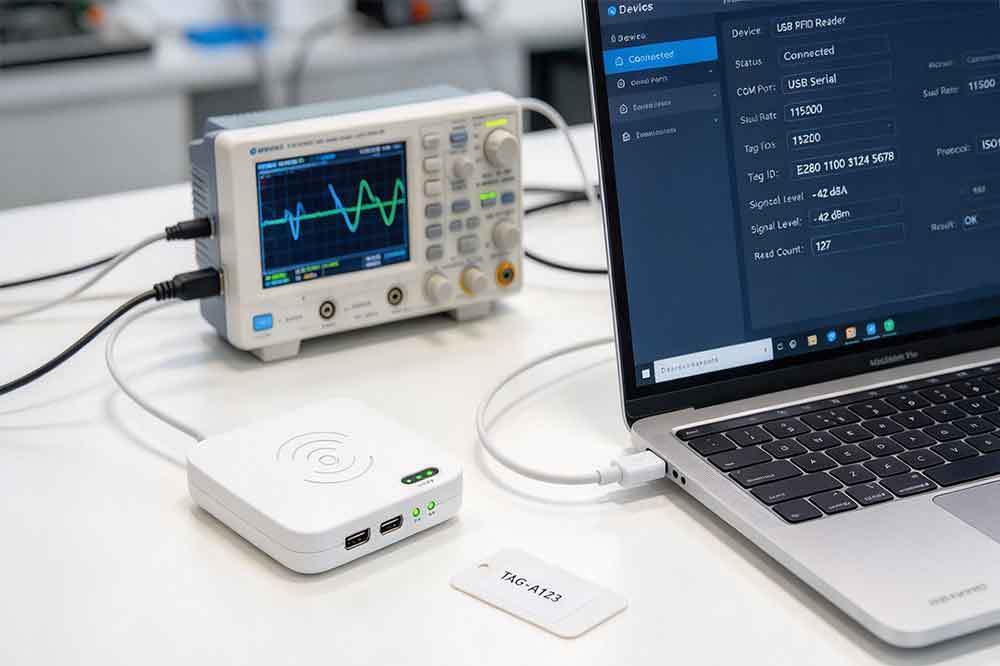
Confirm that the correct driver is installed for the model and operating system. If the reader exposes a virtual COM port, check which port has been assigned and make sure the application is using that same port.
Also check whether another application has already opened the device. A serial port or SDK-controlled reader may not allow two applications to communicate with it simultaneously.
For software-based readers, verify the following:
The correct reader model and communication interface are selected.
The required SDK version and dependencies are installed.
The application has the necessary device permissions.
The correct COM port, baud rate, or other communication parameters are configured where applicable.
The application is receiving the expected tag data format.
Avoid reinstalling every driver or changing multiple settings at once. Make one change, repeat the same tag test, and record the result. This makes it easier to identify the setting that actually resolves the problem.
Check Read Distance and Antenna Position
A reader may be operating correctly but fail to detect tags presented outside its effective reading area.
For HF readers, the tag generally needs to be placed close to the reader’s antenna. UHF readers may support longer distances, but their performance depends on antenna design, tag construction, orientation, and the surrounding environment.
Test the tag at several distances, starting close to the antenna and moving outward. Rotate the tag if necessary, because antenna orientation can affect coupling and read performance.
Metal surfaces can also affect RFID performance. A tag designed for ordinary cardboard or plastic may perform poorly when attached directly to metal. Some tags are specifically designed for metal-mounted applications.
If the reader works at close range but fails farther away, review the product’s rated reading distance and installation conditions before assuming a hardware fault.
Look for RFID Interference and Environmental Changes
RFID performance can change when the reader is installed near other electronic equipment, metal structures, or additional RFID devices.
In HF systems, metal and nearby conductive materials can affect the reader’s magnetic field. In UHF installations, reflections, antenna placement, nearby readers, and the characteristics of the tagged objects can influence read reliability.
Try the following controlled tests:
Move the reader and tag away from nearby metal objects where practical.
Temporarily separate the reader from other RFID equipment.
Test the same tag in a different location.
Compare results with the original installation.
Restore the intended configuration after identifying the cause.
If the problem occurs only in a particular workstation or installation, document the surrounding equipment and physical layout. This information can help the engineering team identify environmental causes that are difficult to reproduce on a test bench.
Check Tag Data and Application Logic
Sometimes the reader detects a tag, but the application appears to receive nothing. The actual problem may be the data format or the application’s interpretation of the response.
For example, a reader may output a tag’s hexadecimal identifier while the application expects a decimal value. Another reader may append a carriage return or line feed after the tag data. If the software does not handle that format correctly, the identifier may not be processed as expected.
Check whether the application expects a UID, EPC, or another identifier. These are not interchangeable across all RFID systems, and a tag may expose different data depending on the protocol and reader configuration.
Capture the raw output if the reader interface allows it. Compare the received value with the expected format and check whether the application rejects the data because of validation rules, duplicate filtering, or an incorrect input field.
This is particularly important when integrating a USB RFID reader into inventory software, an employee registration platform, or a custom database application.
Update Firmware or Contact Technical Support
If the reader fails with compatible tags across multiple USB ports and computers, further hardware-level investigation may be necessary.
First, check the manufacturer’s documentation for known compatibility issues, firmware updates, configuration utilities, and troubleshooting instructions. Do not install firmware intended for a different model or interrupt a firmware update.
Before contacting technical support, collect the information needed to reproduce the problem:
Reader model and firmware version
Tag frequency, chip type, and protocol
Operating system and driver version
HID, serial, or SDK operating mode
Application or SDK version
Results from testing with a known-compatible tag
Any error messages or available diagnostic logs
If the reader cannot detect compatible tags under a supported configuration, the manufacturer may recommend further testing, repair, or replacement.
Use a Repeatable Troubleshooting Process
For project engineers and system integrators, the goal is not just to get one tag working. The reader must operate consistently in the intended application and installation environment.
Use a simple diagnostic sequence: confirm USB recognition, verify tag compatibility, test a known-good tag, isolate the reader interface, check software settings, and investigate antenna positioning and interference.
Once the cause has been identified, repeat the test with several representative tags and confirm that the application receives the expected data. Record the working configuration so that the same issue can be resolved more quickly during deployment or maintenance.
If you are selecting a reader for a new project, review the available USB RFID readers and confirm their frequency, supported protocols, communication interfaces, and software requirements before placing an order.
A little compatibility checking at the beginning can save considerably more time than diagnosing an unsuitable reader after installation.
Conclusion
When a USB RFID reader is not reading tags, the cause may be as simple as an incompatible tag or an incorrect software interface. Check the USB connection, confirm frequency and protocol compatibility, test a known-good tag, and separate reader detection problems from application-level errors.
If the reader still fails after these checks, use the test results and device information to guide further technical support. A systematic approach is usually more effective than changing several settings or replacing hardware without identifying the underlying problem.
Frequently asked questions
Q1. Why is my USB RFID reader connected but not reading tags?
The reader may not support the tag’s frequency or protocol. Check compatibility first, then test a known-good tag and verify the reader’s operating mode and software configuration.
Q2. How do I know if my RFID reader is working?
Check whether the computer recognizes it. In HID mode, test in a text editor. For SDK or serial mode, use the manufacturer’s test utility or a basic example application.
Q3. Can a USB RFID reader read any RFID card?
No. The reader must support the card’s frequency, protocol, and chip type. LF, HF, and UHF readers are not interchangeable.
Q4. Why does my RFID reader work in a text editor but not in my software?
The reader may be sending data correctly while the application uses the wrong input method, data format, or interface. Check keyboard focus, SDK configuration, and tag identifier formatting.
Q5. When should I replace a USB RFID reader?
Consider replacement after confirming tag compatibility, testing a known-good tag, checking connections and supported software, and reproducing the failure across another computer or supported setup.
Related Article
For projects targeting Android devices rather than a conventional desktop environment, see our guide to connecting a USB RFID reader to Android for additional hardware and software considerations.”
When a USB RFID reader is detected by the computer but does not return tag data to your application, the problem may lie in device initialization or communication settings. Our USB RFID reader SDK and API integration guide explains how to connect the reader to software and handle tag data correctly.
For a practical application example, our guide to USB RFID readers for warehouse inventory explains how desktop RFID workflows can support item identification and inventory operations.
Developers building equipment or fixed-asset management systems can also explore RFID reader integration for asset tracking to understand how tag identification fits into an operational workflow.
If the reader can detect a tag but your inventory system or business application does not process the result, check how the application receives and interprets the data. This guide explains how to integrate a USB RFID reader into existing software, including the communication and data-handling steps involved.
The correct troubleshooting method depends partly on how the reader communicates with your computer. Before changing configuration settings, compare HID vs SDK for USB RFID readers to understand which interface suits your application and how each handles tag data.
RFID Industry Writer | IoT & Asset Tracking Analyst
James writes about RFID technology, asset tracking, and the practical challenges of digital transformation across warehousing, retail, manufacturing, and logistics.
His work focuses on how RFID is applied in real-world operations—improving inventory visibility, automating workflows, and helping businesses manage assets with greater accuracy and efficiency.
He regularly covers topics including UHF RFID, smart cabinets, RFID portals, tool tracking, warehouse automation, and industrial IoT trends..
This article explores how RFID technology is used in asset management: the benefits, the common challenges, practical lessons learned from real-world projects, and strategies to improve success rates in different environments. Perfect for teams lo...
RFID Tool Checkout System automates the process of checking tools in and out by connecting RFID-tagged tools with user identities and digital transaction rec...
Compare QR codes and NFC/RFID tags for your business. Discover their pros and cons in cost, security, and usability to choose the right identification technology.
 Cykeo RFID IoT Solution Products R&D Manufacturer