Adding RFID functionality to an existing application does not always require a new software platform. In many projects, the main task is getting the USB RFID reader to deliver reliable tag data to the application and then using that data in the right business process.
For example, a warehouse may already have an inventory management system, but employees still enter product numbers manually. A USB RFID reader can reduce that work by capturing tag information and passing it to the existing software. The application can then retrieve the relevant product record, update inventory, or record a transaction.
The actual integration method depends on the reader, the software environment, and how the data needs to be used. Here is what to check before starting.
Understand Your Existing Software Environment
Before selecting a reader or writing code, identify how the current application works.
Start with the operating system. A Windows desktop application may support keyboard input or serial communication, while a cross-platform application may need a different connection method. Also check the programming language, database, and existing interfaces available in the software.
Next, decide what should happen when a tag is scanned. In an inventory application, the system might retrieve a product record and update stock. In an asset management system, it might display the assigned department, location, or maintenance history.
These requirements affect the choice of reader and integration method.
It is also important to identify the tag data you need. Some applications use a tag’s UID, while others depend on EPC data or information stored in specific memory banks. These are not interchangeable in every RFID system, so confirm what the reader and tags actually support.
Choose the Right USB RFID Reader Integration Method
USB RFID readers do not all communicate with software in the same way. Three common options are keyboard emulation, serial communication, and SDK-based integration.
Keyboard Emulation
A keyboard-emulation reader sends the scanned tag data to the active input field as if it had been typed on a keyboard.
This is often the quickest option for an application that already has a text field for product numbers, employee IDs, or asset codes. Little additional programming may be needed.
However, keyboard emulation has limitations. The application must have focus on the correct field, and the tag data format must match what the software expects. If the workflow requires automatic database updates, background scanning, or advanced error handling, keyboard input may not be enough.
Virtual COM Port or Serial Communication
Some USB readers provide a virtual COM port or another serial interface. The application communicates with the reader through a serial connection and processes the returned data.
This method provides more control over how incoming data is received and handled. It can be useful for custom desktop applications, production workstations, and inventory tools that need a defined scanning workflow.
Developers should check the reader’s communication protocol, baud rate where applicable, message format, and connection settings. Not every USB RFID reader uses a serial interface, so the device documentation should be checked before development begins.
SDK and API Integration
For more advanced projects, a manufacturer’s SDK or API may provide functions for connecting to the reader, starting or stopping scans, retrieving tag information, and configuring supported features.
This approach is useful when the application needs to control the reader directly rather than simply receive a tag ID.
Before choosing an SDK, check the supported programming languages, operating systems, dependencies, licensing terms, and sample projects. If your software is written in C# or Java, for example, confirm that the available libraries can be used in your development environment.
For more detail on available development tools, read our guide to [USB RFID Reader SDK and API Integration Guide].
Connect the Reader to Your Application
Once the communication method has been selected, connect the reader and verify that it works independently of the main application.
Install the required driver if one is needed, connect the device, and check whether the operating system recognizes it. For serial-based devices, identify the correct port and configure the communication parameters specified by the manufacturer.
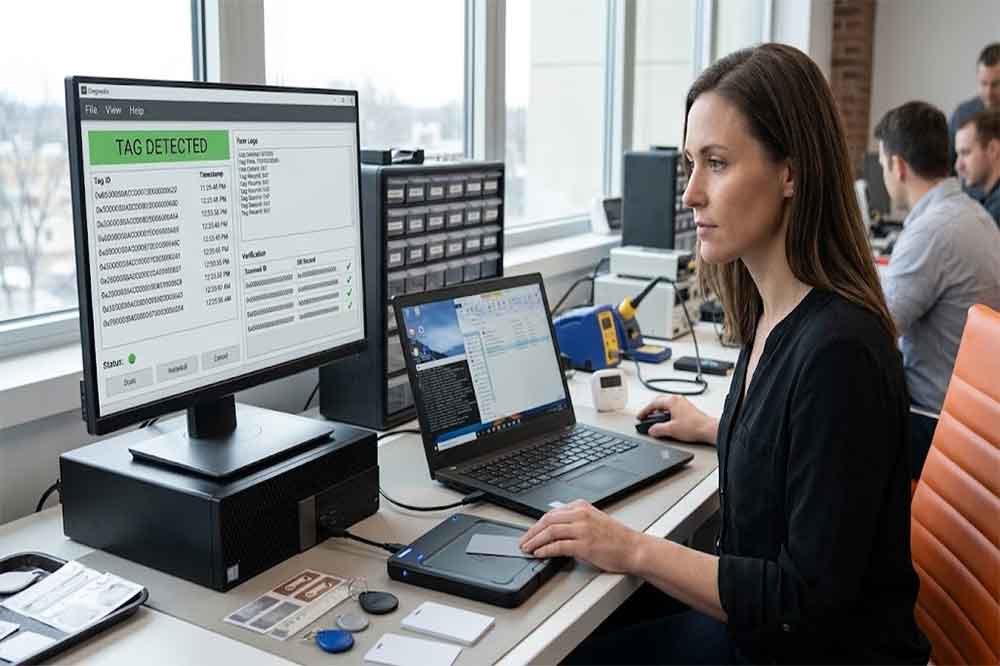
Run a basic test with a compatible RFID tag. Confirm that the expected identifier appears and that the data is complete. This step helps separate reader configuration problems from application programming errors.
After the basic test succeeds, build a small integration function that receives the reader output. Keep this part of the code separate from database updates and business rules. That makes it easier to troubleshoot the connection without affecting other application functions.
For developers using a custom application, the next step is to connect this function to the existing user interface or background service.
Process RFID Data Correctly
Receiving tag data is only one part of the integration. The application must also interpret it correctly.
Start by confirming the data format. A reader may return hexadecimal characters, a decimal representation, EPC data, or additional information depending on the model and configuration. Avoid changing the format without checking how existing records store their identifiers.
The software should then validate the incoming data before using it. For example, it can reject empty values, check expected lengths, and handle unexpected characters. If the tag identifier is used as a database key, the application should follow a consistent format every time it receives the same tag.
Repeated reads also need attention. A tag left within the reader’s field may be detected more than once. If each detection triggers a stock deduction or attendance record, the application could produce incorrect results.
Depending on the workflow, duplicate handling may use a short time window, an explicit scan confirmation, a transaction state, or a combination of these methods. The correct approach depends on whether repeated scans represent accidental duplication or legitimate separate transactions.
Connect RFID Data to Existing Databases and Workflows
After the reader output has been validated, connect it to the application’s existing business logic.
In an inventory system, the tag ID may be used to find a product record. The software can then display the item name, SKU, stock quantity, or storage location. In an asset management system, the same process may retrieve the assigned user, department, or maintenance status.
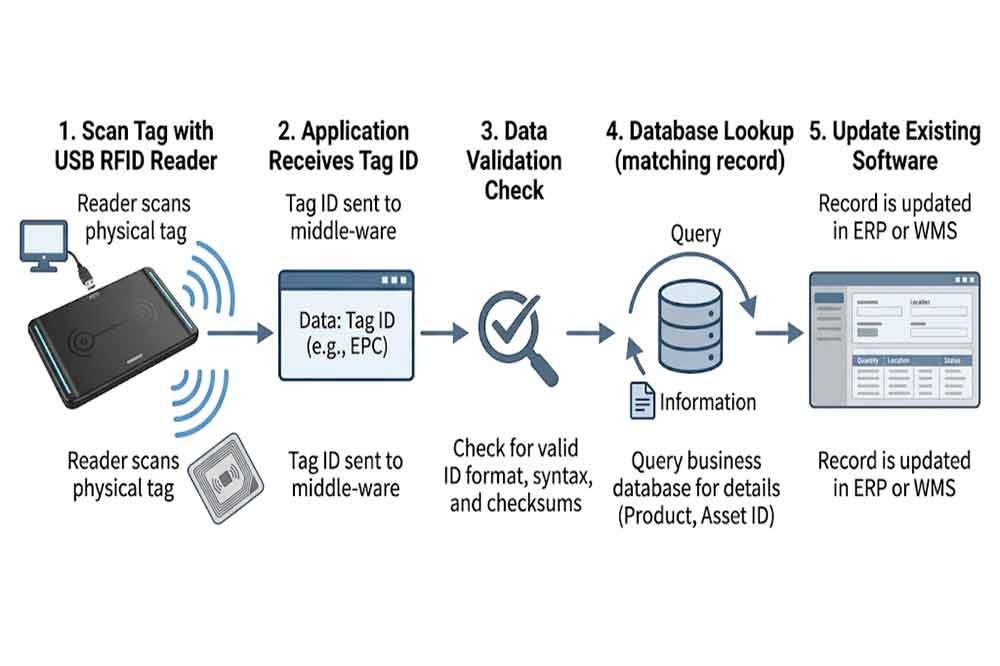
A typical workflow looks like this:
The reader detects an RFID tag.
The application receives and validates the identifier.
The software searches for the matching database record.
The user or system confirms the intended operation.
The application saves the transaction and displays the result.
Keep database operations within the application’s existing data-access layer where possible. There is usually no need to redesign the entire database just to introduce RFID scanning.
For business-critical operations, use appropriate transaction handling and error logging. If the reader disconnects or the database is unavailable, the application should report the problem rather than silently losing the scan.
Also consider how the system records timestamps, user IDs, and transaction types. These details are often necessary for audit trails, stock reconciliation, and troubleshooting.
Test the Integration Before Deployment
A reader that works in a simple test program may still behave differently inside a larger application. Test the complete workflow before deploying it to multiple workstations.
Start with the basic functions: connect the reader, scan a compatible tag, retrieve the correct record, and save the expected result. Then test realistic operating conditions, including repeated scans, multiple tags where supported, rapid scanning, and different tag positions.
Check what happens when the reader is disconnected during use. Can the application detect the failure? Does it reconnect automatically, or does the operator need to reconnect manually? If a scan is received but the database update fails, can the user safely retry without creating a duplicate transaction?
These questions matter in warehouses, retail counters, production lines, and other environments where a short interruption can affect daily operations.
Document the tested reader model, firmware version, driver, SDK version, operating system, and application version. This record helps the development team reproduce problems and maintain the integration later.
Common RFID Software Integration Problems
Several issues appear frequently during implementation.
The reader is detected, but no tag data appears. Check the tag compatibility, reader configuration, communication interface, and whether the tag is within the effective reading range.
The tag ID is received in the wrong format. Compare the reader output with the identifier format stored in the database. Confirm whether hexadecimal conversion, padding, or another documented transformation is required.
The application processes one tag several times. Review the reader’s reporting behavior and add duplicate handling that matches the business workflow.
The software cannot access the COM port or device. Check the selected port, operating system permissions, driver installation, and whether another application is already using the connection.
The SDK works in a test project but not in the main application. Review library versions, architecture compatibility, dependencies, and the manufacturer’s integration examples.
Troubleshooting is usually easier when reader communication, data validation, and business logic are tested as separate components.
Choose a USB RFID Reader for Your Software Project
The reader should be selected according to the application requirements, not just the physical USB connection.
Confirm the RFID frequency, supported tag standards, required read and write functions, and expected reading distance. A reader intended for a desktop identification workflow may not suit a project that needs to identify many tagged items quickly.
Software compatibility deserves the same attention. Ask the supplier whether the reader supports keyboard emulation, serial communication, or an SDK/API, and whether development examples are available for your operating system and programming language.
For a commercial project, it is also worth checking firmware support, driver availability, integration documentation, and technical assistance during development.
If your project involves a custom desktop application, warehouse workstation, retail system, or asset management platform, review the available [USB RFID Reader products] and identify a model that fits both the hardware requirements and the software architecture.
Conclusion
RFID software integration is most straightforward when the communication method, tag data format, and intended workflow are defined before development begins. A simple application may only need keyboard emulation, while a more advanced system may require serial communication or an SDK.
Test the reader independently, validate incoming tag data, handle duplicate reads, and connect the result to the existing business logic. With these steps in place, a USB RFID reader can add automated identification to an existing application without requiring a complete system replacement.
For projects with specific programming, database, or workflow requirements, confirm the reader’s interface and software support with the manufacturer before finalizing the design.
Related Article
For projects targeting Android devices rather than a conventional desktop environment, see our guide to connecting a USB RFID reader to Android for additional hardware and software considerations.”
For a practical application example, our guide to USB RFID readers for warehouse inventory explains how desktop RFID workflows can support item identification and inventory operations.
Developers building equipment or fixed-asset management systems can also explore RFID reader integration for asset tracking to understand how tag identification fits into an operational workflow.
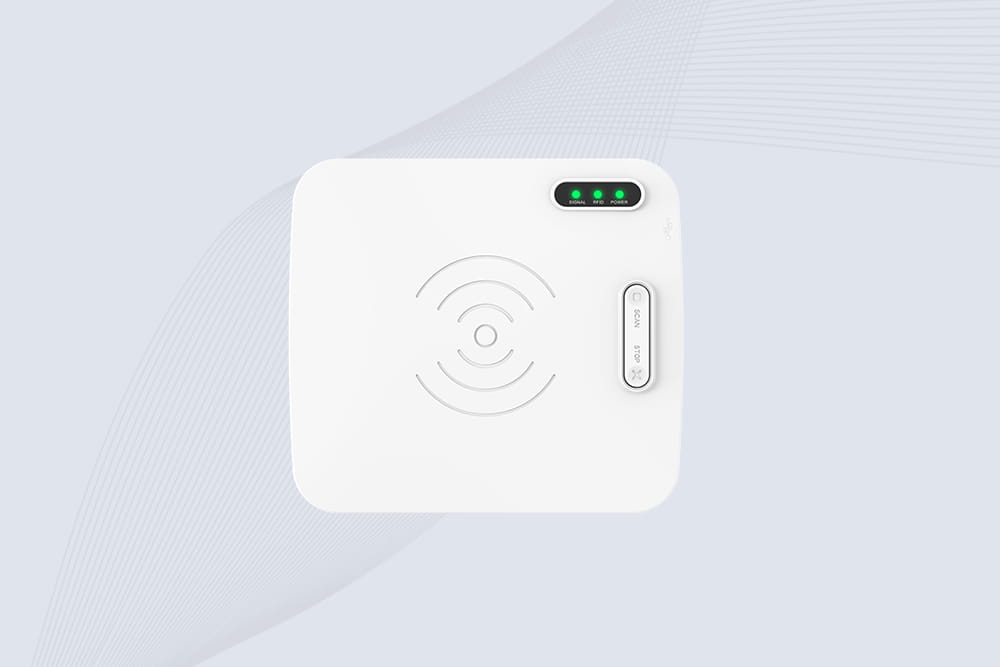
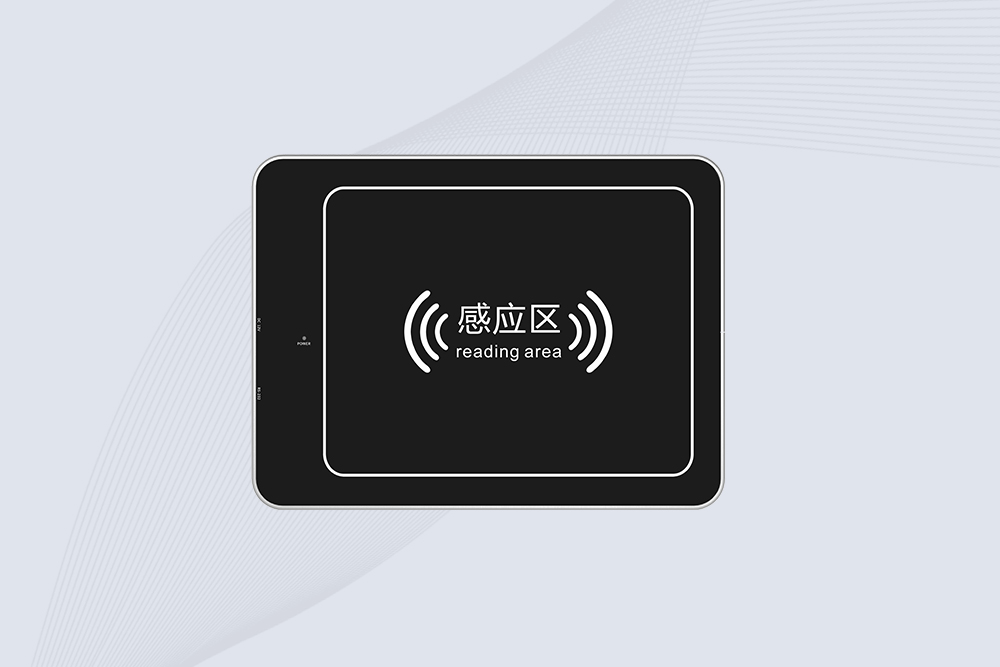
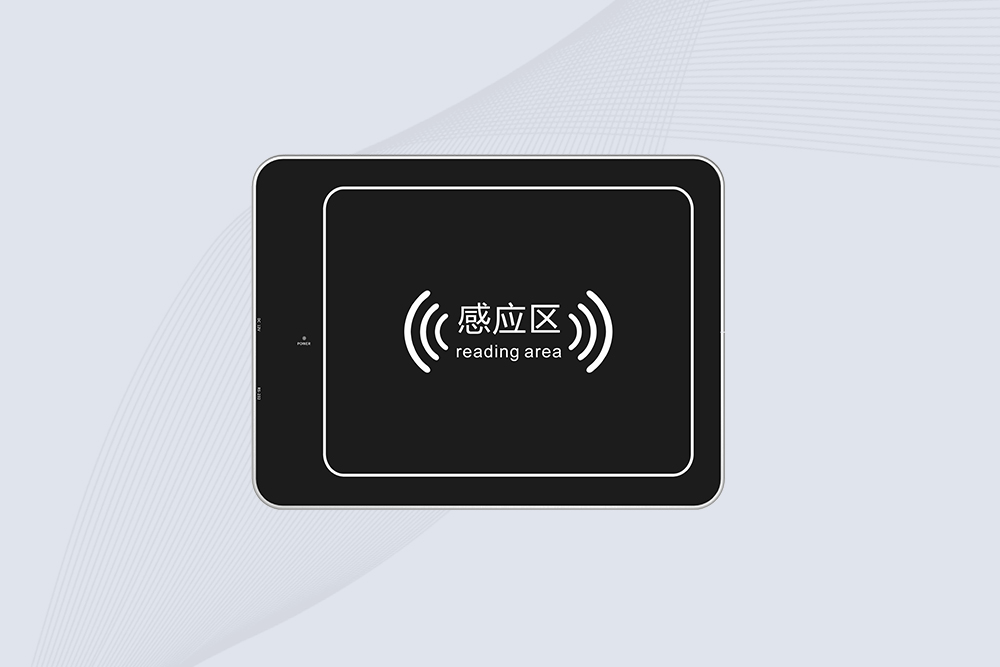
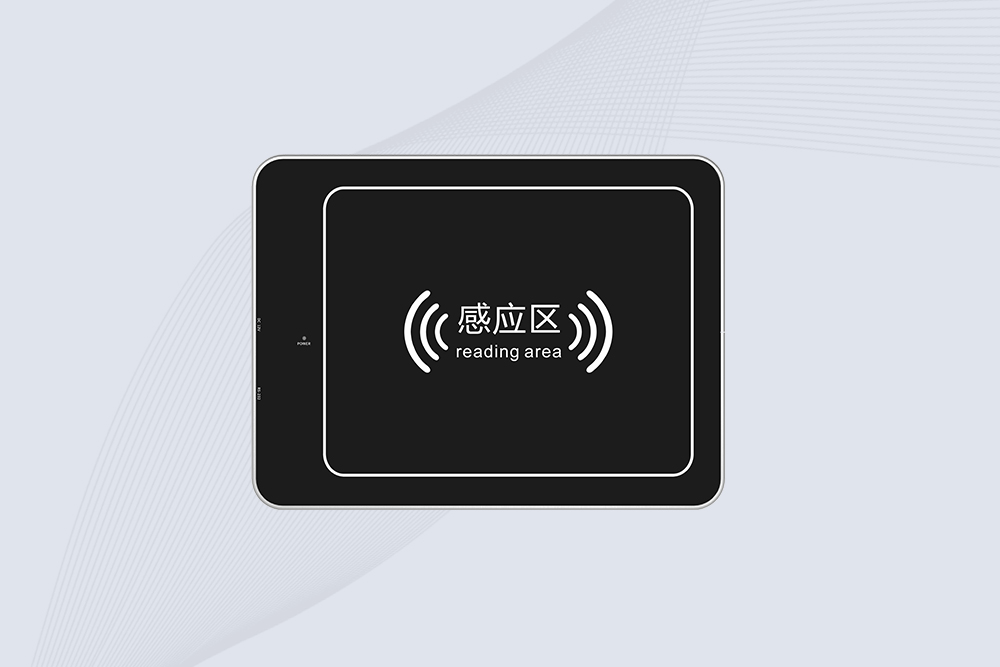
SSD-D3AL is a USB-HID UHF RFID reader with 0–30 cm reading, 0–15 cm writing, over 600 tags/s recognition, USB plug-and-play operation and OEM Logo customization.
SSD-D1AL is a compact USB UHF RFID reader with Impinj E710/X3M1 chipset, USB-HID, 600+ tags/s recognition, 4/8/16 antenna support and plug-and-play USB power.
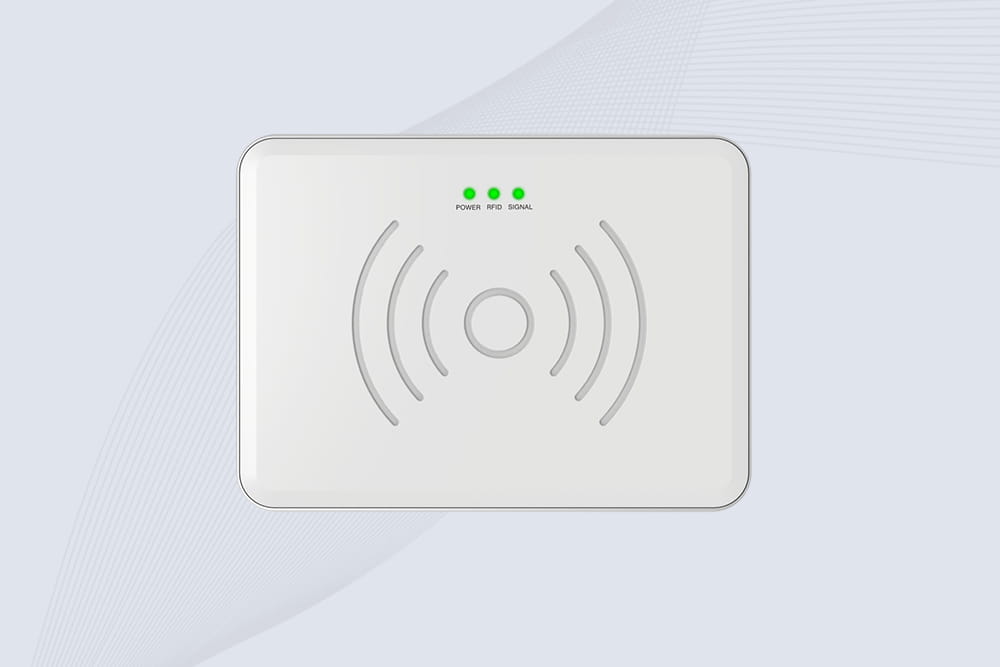
CYKEO CYKEO-D1LA USB RFID Reader is a compact desktop solution with near-field control for precise tag reading and encoding. Powered by USB, supporting ISO 18000-6C, and built for stable batch writing, this usb rfid tag reader fits retail, libraries, offices, and controlled RFID encoding tasks.
CYKEO CYKEO-D1L RFID scanner USB is a compact desktop UHF RFID scanner designed for short-range tag writing and verification. This usb rfid scanner supports batch encoding, stable 0–26 dBm output, and works across Windows, Linux, and Android systems.
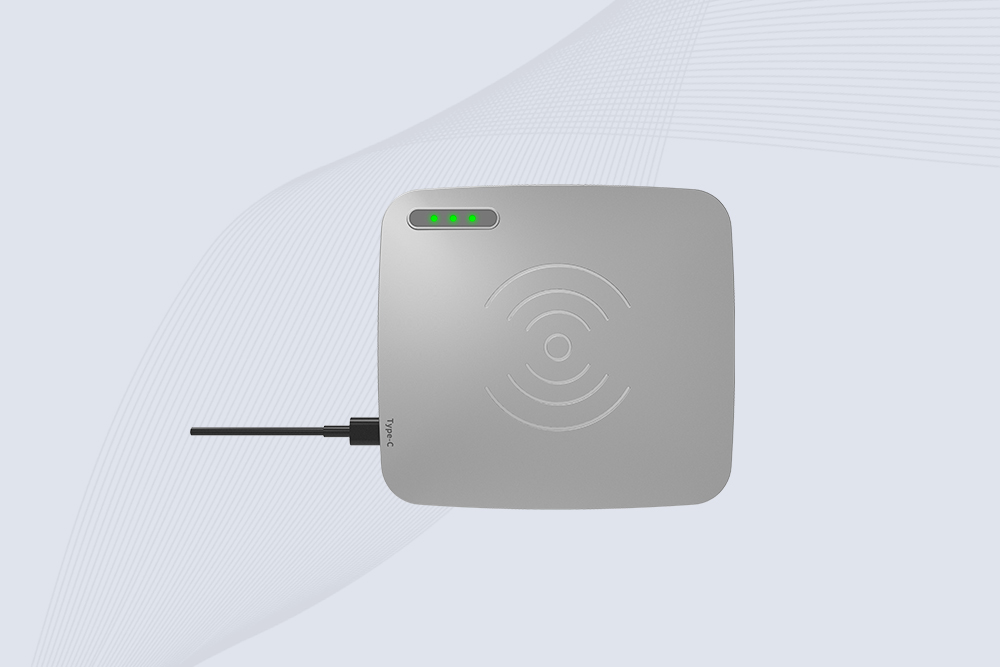
CYKEO CYKEO-D1C USB RFID Card Reader is a near-field UHF desktop writer designed for secure, short-range tag encoding. With USB-C connectivity and stable 26 dBm output, this rfid reader usb c is ideal for badge issuance, label encoding, and controlled desktop RFID workflows.
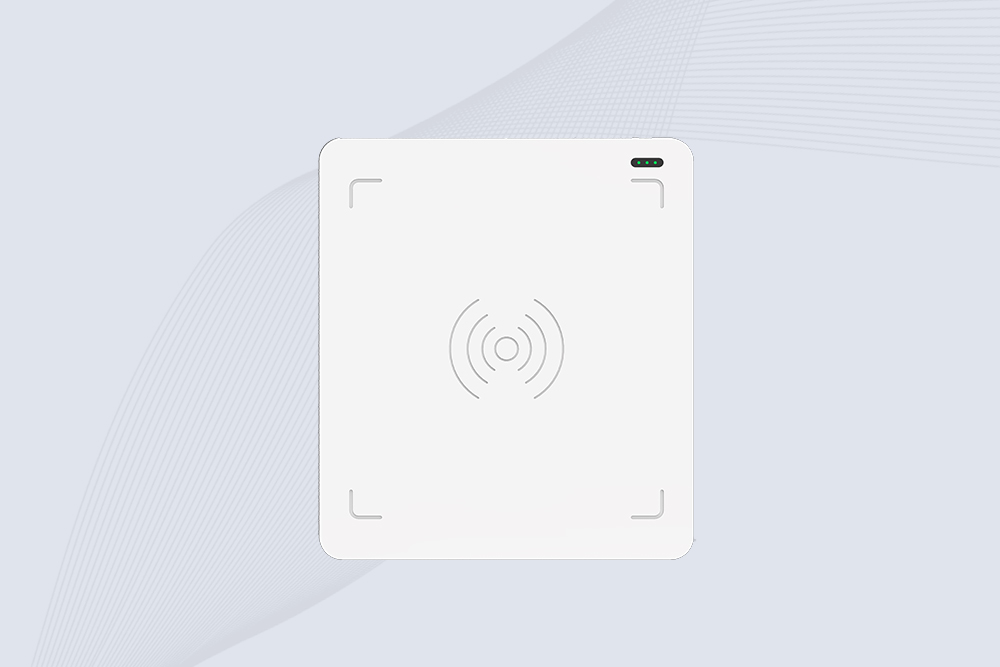
CYKEO CYKEO-D2L RFID Reader USB is a compact desktop encoder built on the Impinj R500 chip. With near-field control and stable USB power, this usb rfid card reader delivers precise tag writing for offices, retail counters, and small-scale logistics encoding tasks.
CYKEO CYKEO-D3L USB RFID Tag Reader delivers stable UHF tag reading and writing for daily desktop and light industrial tasks. Designed for controlled short-range operation, this USB RFID Tag Reader works reliably with rfid tag and reader systems in libraries, tool tracking, and inventory registration.
The CYKEO CYKEO-D4L UHF RFID Tag Reader is a stable Desktop RFID Reader designed for accurate tag registration, borrowing, and return workflows. Built with the Impinj R2000 chip, this UHF RFID Tag Reader delivers controlled short-range reads for libraries, asset tracking, and inventory management environments.
The CYKEO CYKEO-D5L Desktop RFID Card Reader is a stable UHF RFID Card Reader designed for controlled short-range reading and writing. Built for libraries, tool rooms, and asset desks, this UHF RFID Card Reader supports dense tag handling, secure data processing, and easy USB integration.
The CYKEO CYKEO-D6L RFID Reader Writer is a heavy-duty Desktop RFID Reader designed for short-range, high-accuracy tag programming. Built for libraries, labs, and asset desks, this RFID Reader Writer supports batch processing, stable 33dBm output, and seamless integration with existing management systems.
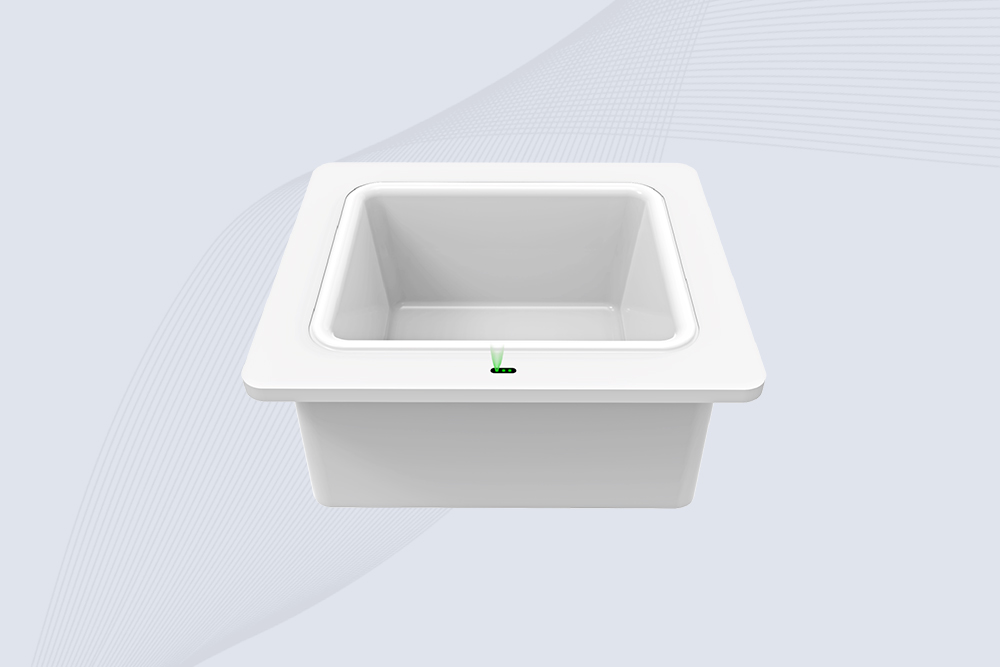
Cykeo CYKEO-D8A embedded RFID badge reader offers 30+ tags/sec scanning, 20cm anti-crosstalk precision, and DC 12V power for unmanned stores, warehouses, and smart inventory systems.
Cykeo’s CYKEO-D8C UHF RFID gate reader achieves 200-tag/batch scanning with adjustable power control, ideal for retail inventory and smart warehouse management.
RFID Industry Writer | IoT & Asset Tracking Analyst
James writes about RFID technology, asset tracking, and the practical challenges of digital transformation across warehousing, retail, manufacturing, and logistics.
His work focuses on how RFID is applied in real-world operations—improving inventory visibility, automating workflows, and helping businesses manage assets with greater accuracy and efficiency.
He regularly covers topics including UHF RFID, smart cabinets, RFID portals, tool tracking, warehouse automation, and industrial IoT trends..
Active RFID tags are battery-powered devices that transmit identification signals to readers, supporting longer-range asset tracking, real-time monitoring, a...
Can an RFID reader read multiple tags models? Short answer: yes, with multi-protocol or hybrid readers. Long answer: frequency, protocol, and power matter. Here's what works.
passive RFID tags do not contain batteries. They function like a delicate "energy harvester." When entering the electromagnetic field emitted by the reader, the tag antenna converts the received electromagnetic wave energy into direct current, whi...
CYKEO is a leading RFID solutions provider offering proprietary multi-function circuit boards, 99.99% scanning accuracy, 100+ design patents, and expert engineering support. Experience seamless integration, quality manufacturing, and tailored solu...
 Cykeo RFID IoT Solution Products R&D Manufacturer