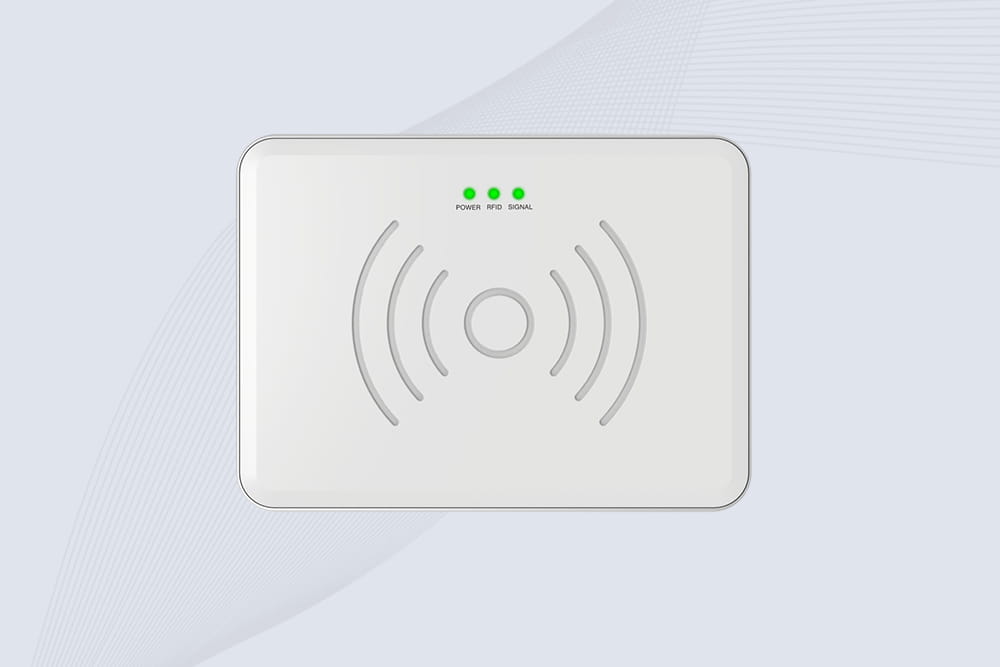
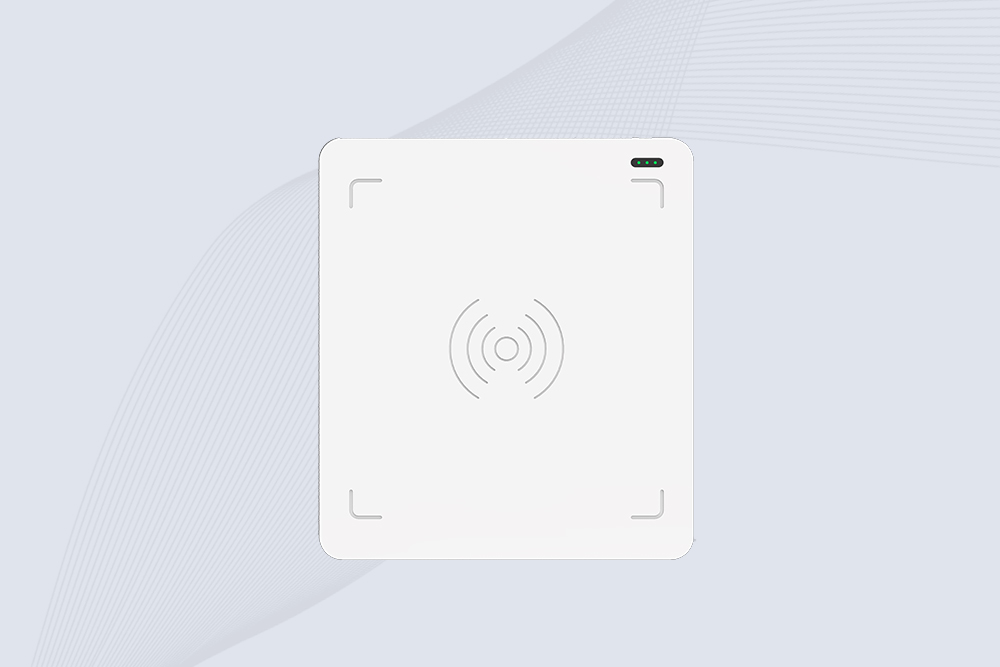
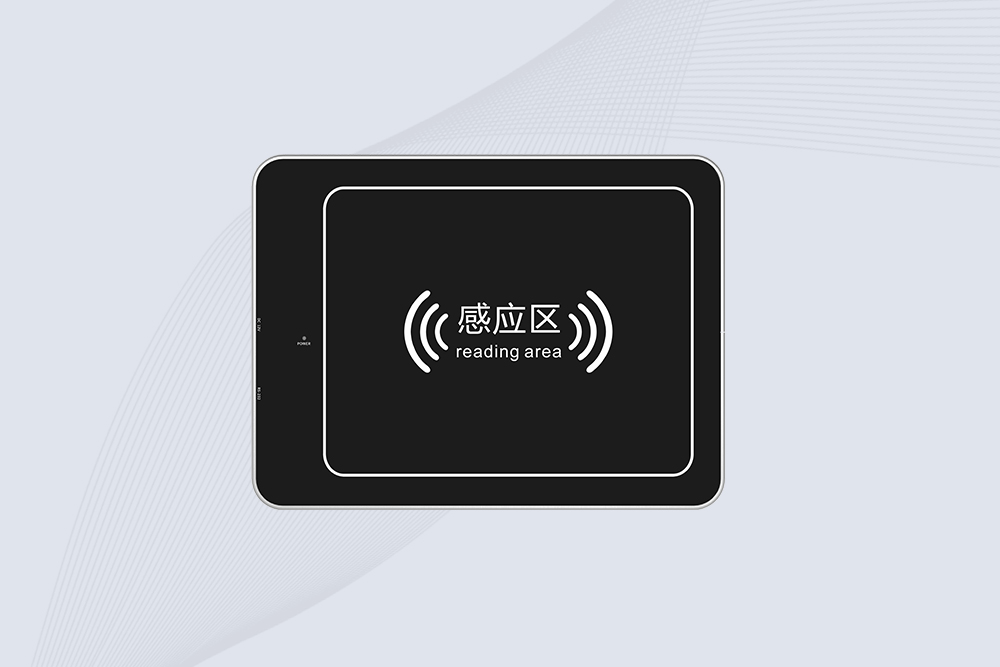
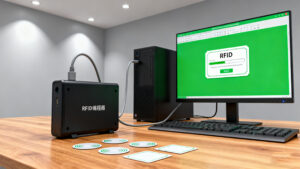
Connecting a USB RFID reader to a PC is a common first step when building an RFID inventory system, employee identification terminal, access management application, or desktop encoding station.
In many cases, the reader can be connected directly to a USB port and tested within minutes. However, not every USB RFID reader works in the same way. Some send card data to the computer as keyboard input, while others communicate through a virtual serial port or a software development kit (SDK).
Understanding these differences before installation can save time, especially when the reader needs to work with existing business software.
Check the USB RFID Reader and PC Compatibility
Before connecting the reader, check its technical specifications. A USB connector only describes the physical interface. It does not tell you which RFID cards the reader can recognize or how the device transfers data.
Identify the RFID Frequency and Card Type
RFID readers operate at different frequencies, commonly including 125 kHz, 13.56 MHz HF, and UHF bands such as 860–960 MHz, depending on the product and regional regulations.
The reader and card must use compatible RFID technology. For example, a 13.56 MHz reader designed for a particular HF protocol will not automatically read a 125 kHz access card.
For HF readers, check supported standards such as ISO/IEC 14443 or ISO/IEC 15693, along with any specific chip or protocol requirements. For UHF equipment, confirm the supported air-interface standard and tag specifications.
Check the USB Interface and Operating System
Confirm that the reader supports your computer’s operating system, such as Windows or Linux, and check whether additional drivers or libraries are required.
Also, determine the reader’s output mode:
USB HID keyboard mode: Sends card data as simulated keyboard input.
USB virtual COM port mode: Sends data through a serial interface.
SDK or API mode: Allows an application to control the reader and process its data.
This information determines the correct installation and testing method.
Connect the USB RFID Reader to Your Computer
Once compatibility is confirmed, connect the reader to an available USB port.
Place the reader on a stable surface, away from unnecessary metal objects that may affect RF performance.
Connect the USB cable directly to the computer.
Check the reader’s power or status indicator, if available.
Wait for the operating system to detect the device.
Follow the manufacturer’s instructions if the reader requires a separate driver or configuration utility.
For initial testing, a direct connection to the PC is preferable to using an unpowered USB hub.
If the reader has no indicator light, that does not necessarily mean it has failed. Check the device documentation and confirm whether the computer recognizes it before assuming there is a hardware problem.
Install the Required Driver
Some USB RFID readers work with standard operating-system drivers. Others require a manufacturer-provided driver, particularly when they use a USB-to-serial interface or a specialized communication protocol.
For Plug-and-Play USB RFID Readers
Connect the device and allow the operating system to finish detecting it. If the reader operates in keyboard emulation mode, you may be able to test it immediately without installing a separate driver.
Open Device Manager on Windows and check the relevant device categories if you need to confirm detection.
For Virtual COM Port Readers
Open Device Manager and look under Ports (COM & LPT). If the reader appears as a COM port, note the assigned port number.
If the device appears with a warning symbol or is not recognized, install the driver recommended by the manufacturer. Disconnect and reconnect the reader if the installation instructions require it.
Avoid downloading drivers from unknown websites. Use the manufacturer’s official documentation or support channel.
Test the USB RFID Reader on the PC
After connecting the hardware, perform a basic card-reading test before integrating the device into a larger application.
Method 1: Test Keyboard Emulation
If the reader supports USB HID keyboard mode, the process is simple.
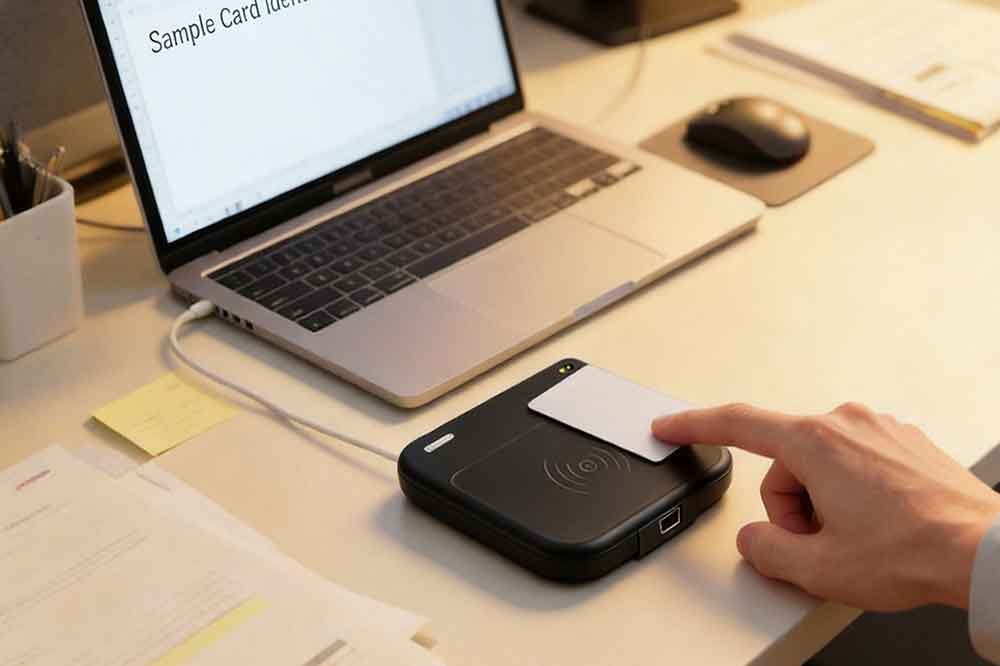
Open Notepad or another plain-text editor.
Click inside the text area.
Present a compatible RFID card or tag to the reader.
Check whether the card’s configured identifier appears on the screen.
Depending on the reader configuration, the output may include a card UID, a formatted card number, or another data field. Some devices also append an Enter or Tab keystroke after reading.
If nothing appears, check whether the reader is in keyboard mode and whether the card matches the reader’s supported technology.
Method 2: Test Serial Communication
For a reader that uses a virtual COM port, a terminal application may be needed.
Identify the assigned COM port.
Open a serial terminal.
Set the baud rate, data bits, parity, stop bits, and flow control according to the reader’s manual.
Open the port and present a compatible card.
Check the returned data.
Do not assume that every serial RFID reader uses the same baud rate or data format. Some devices use binary commands rather than sending a readable card number automatically.
A successful connection only confirms that the PC can communicate with the reader. You must still verify that the received data matches the format required by your application.
Connect the USB RFID Reader to Your Software
The next step depends on what the computer needs to do with the RFID data.
Keyboard Input for Simple Applications
For applications that accept keyboard input, HID mode can be a practical option. The reader types the configured card data into the active field.
This approach is useful for:
Employee check-in forms
Basic inventory lookup
Library circulation terminals
Simple membership registration
Desktop data-entry systems
One limitation is that the application usually receives keystrokes rather than direct reader events. Focus management, duplicate scans, and the configured suffix may need attention.
Serial Communication for Custom Applications
If the reader uses a COM port, your application can open the port, receive data, and process the result according to the device protocol.
This approach provides more control over data handling, but the developer must implement the appropriate communication settings and parsing logic.
For example, a warehouse application could receive a tag identifier, look up the corresponding product record, and update an inventory screen.
SDK and API Integration
Some USB RFID readers provide an SDK, API, sample code, or protocol documentation. These resources can help developers control reading operations, configure output settings, write supported tags, or retrieve additional information.
Before choosing a reader for a software project, verify that its SDK supports your operating system and programming environment. Java, C#, and other development environments may be supported depending on the product.
For business deployments, test the reader with the actual application rather than relying only on a successful demonstration in a text editor.
Troubleshoot Common USB RFID Reader Connection Problems
If the reader does not work as expected, check the connection method before changing multiple settings at once.
Problem
What to Check
PC does not detect the reader
USB cable, port, power, and driver
Card scan produces no text
HID mode, active input field, and card compatibility
COM port is missing
Driver installation and Device Manager
Data appears incorrectly
Output format, encoding, and terminal settings
Some cards cannot be read
Frequency, protocol, and supported chip types
Application receives no data
Port configuration, SDK, permissions, and protocol
If the reader works in a text editor but not in the business application, the hardware connection is probably not the main issue. Check the application’s input field, expected data format, and integration method.
If only certain cards fail, verify their frequency and protocol before replacing the reader.
Choose a USB RFID Reader for Your Project
The right reader depends on more than its USB connector. Consider the card technology, reading distance, communication mode, software requirements, and the environment where the device will be used.
For a basic desktop check-in system, keyboard emulation may be sufficient. For an inventory platform or custom management application, serial communication or SDK integration may provide greater flexibility.
If the reader will be integrated into a commercial product, also check enclosure requirements, cable length, operating conditions, read performance, and the availability of technical documentation.
Cykeo provides USB RFID reader solutions for desktop reading, identification, and system integration. Project buyers and software developers can compare reader interfaces and supported RFID technologies before selecting a model for evaluation.
Connect the reader to a USB port, allow the computer to detect it, and install the required driver if necessary. Then test it using a text editor or the manufacturer’s software, depending on its communication mode.
Q2. Does a USB RFID reader need a driver?
Not always. Many HID keyboard readers work without a separate driver, while some serial or specialized readers require manufacturer-provided drivers.
Q3. Why is my USB RFID reader not reading cards?
Check whether the card uses a supported frequency and protocol. Then verify the reader’s operating mode, connection, driver, and application input settings.
Q4. Can a USB RFID reader send data directly to Excel?
Yes, if the reader supports keyboard emulation, scanned data can often be entered into a selected Excel cell. Serial readers may require a suitable application or integration script.
Q5. Can I integrate a USB RFID reader with custom software?
Yes. Depending on the reader, you can use keyboard input, serial communication, an SDK, or an API. Check the manufacturer’s documentation for supported programming environments and data formats.
Once the reader is connected to a PC, it can become part of a retail inventory workflow. Learn how USB RFID readers support retail inventory management and how scanned identifiers can be used to retrieve product records.
In an asset management application, scanned tag data can be matched with equipment records. Explore how USB RFID readers for asset tracking can support desktop asset registration and inventory checks.
SSD-D3AL is a USB-HID UHF RFID reader with 0–30 cm reading, 0–15 cm writing, over 600 tags/s recognition, USB plug-and-play operation and OEM Logo customization.
SSD-D1AL is a compact USB UHF RFID reader with Impinj E710/X3M1 chipset, USB-HID, 600+ tags/s recognition, 4/8/16 antenna support and plug-and-play USB power.
CYKEO CYKEO-D1LA USB RFID Reader is a compact desktop solution with near-field control for precise tag reading and encoding. Powered by USB, supporting ISO 18000-6C, and built for stable batch writing, this usb rfid tag reader fits retail, libraries, offices, and controlled RFID encoding tasks.
CYKEO CYKEO-D1L RFID scanner USB is a compact desktop UHF RFID scanner designed for short-range tag writing and verification. This usb rfid scanner supports batch encoding, stable 0–26 dBm output, and works across Windows, Linux, and Android systems.
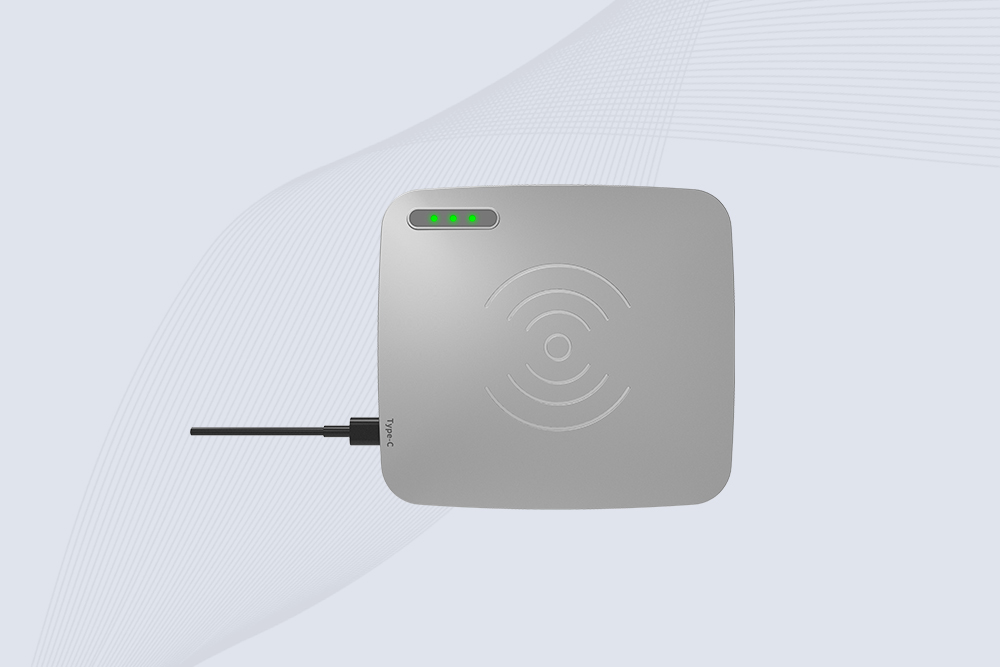
CYKEO CYKEO-D1C USB RFID Card Reader is a near-field UHF desktop writer designed for secure, short-range tag encoding. With USB-C connectivity and stable 26 dBm output, this rfid reader usb c is ideal for badge issuance, label encoding, and controlled desktop RFID workflows.
CYKEO CYKEO-D2L RFID Reader USB is a compact desktop encoder built on the Impinj R500 chip. With near-field control and stable USB power, this usb rfid card reader delivers precise tag writing for offices, retail counters, and small-scale logistics encoding tasks.
CYKEO CYKEO-D3L USB RFID Tag Reader delivers stable UHF tag reading and writing for daily desktop and light industrial tasks. Designed for controlled short-range operation, this USB RFID Tag Reader works reliably with rfid tag and reader systems in libraries, tool tracking, and inventory registration.
The CYKEO CYKEO-D4L UHF RFID Tag Reader is a stable Desktop RFID Reader designed for accurate tag registration, borrowing, and return workflows. Built with the Impinj R2000 chip, this UHF RFID Tag Reader delivers controlled short-range reads for libraries, asset tracking, and inventory management environments.
The CYKEO CYKEO-D5L Desktop RFID Card Reader is a stable UHF RFID Card Reader designed for controlled short-range reading and writing. Built for libraries, tool rooms, and asset desks, this UHF RFID Card Reader supports dense tag handling, secure data processing, and easy USB integration.
The CYKEO CYKEO-D6L RFID Reader Writer is a heavy-duty Desktop RFID Reader designed for short-range, high-accuracy tag programming. Built for libraries, labs, and asset desks, this RFID Reader Writer supports batch processing, stable 33dBm output, and seamless integration with existing management systems.
Cykeo CYKEO-D8A embedded RFID badge reader offers 30+ tags/sec scanning, 20cm anti-crosstalk precision, and DC 12V power for unmanned stores, warehouses, and smart inventory systems.
Cykeo’s CYKEO-D8C UHF RFID gate reader achieves 200-tag/batch scanning with adjustable power control, ideal for retail inventory and smart warehouse management.
RFID Industry Writer | IoT & Asset Tracking Analyst
James writes about RFID technology, asset tracking, and the practical challenges of digital transformation across warehousing, retail, manufacturing, and logistics.
His work focuses on how RFID is applied in real-world operations—improving inventory visibility, automating workflows, and helping businesses manage assets with greater accuracy and efficiency.
He regularly covers topics including UHF RFID, smart cabinets, RFID portals, tool tracking, warehouse automation, and industrial IoT trends..
Can I use an RFID reader on a pet chip? Yes, with a 134.2 kHz LF reader. Standard UHF or HF readers won't work. Here's what you need to know about pet microchip compatibility.
Discover how rfid reder systems improve warehouse visibility, retail inventory accuracy, and industrial tracking with fast UHF RFID automation by Cykeo.
Learn what an RFID programmer does, how it writes and configures RFID tags, and where it’s used in real applications like retail, logistics, and animal tracking.
How RFID work explained with real technology insights. Learn how RFID tags, readers, and systems communicate for tracking, automation, and industrial applications.
 Cykeo RFID IoT Solution Products R&D Manufacturer