All RFID Product

How to Configure UHF RFID Readers for Library Book Checkout Systems?​

Cykeo News RFID FAQ 13940

Configuring UHF RFID readers for library book checkout systems involves hardware setup, software integration, and workflow optimization. Below is a detailed guide using ​​Cykeo’s UHF RFID solutions​​ to streamline borrowing, returns, and inventory management.

​​1. Hardware Setup​​

  1. ​​Install the Reader:​​
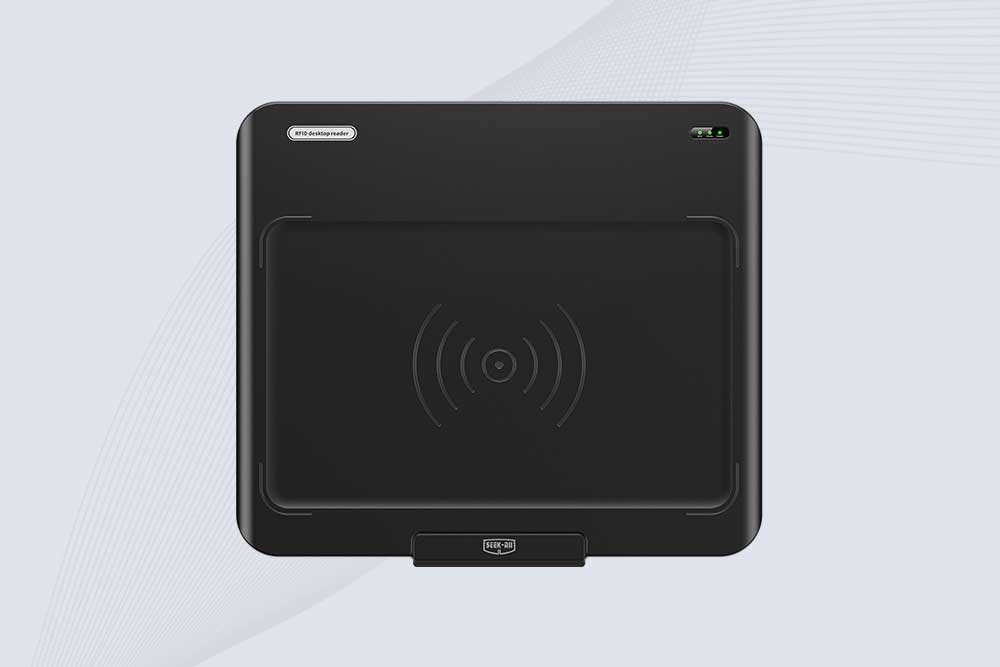
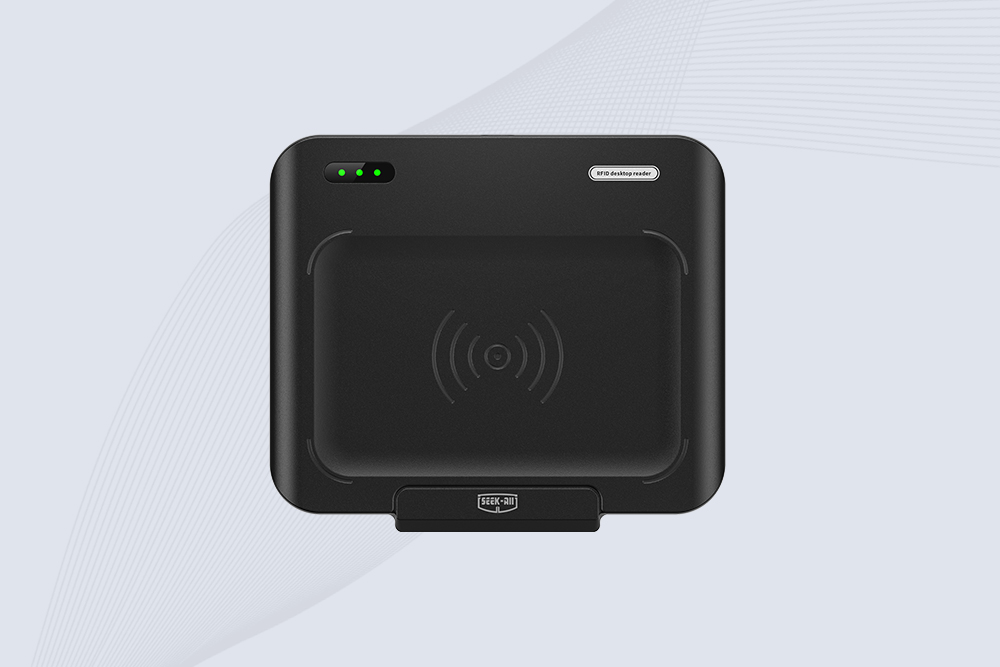
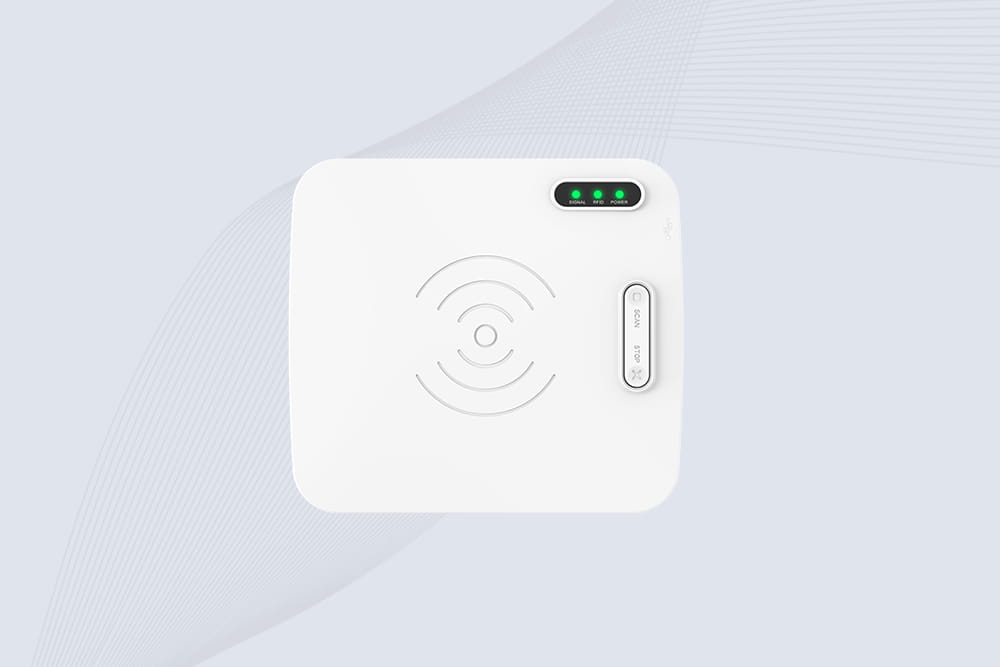
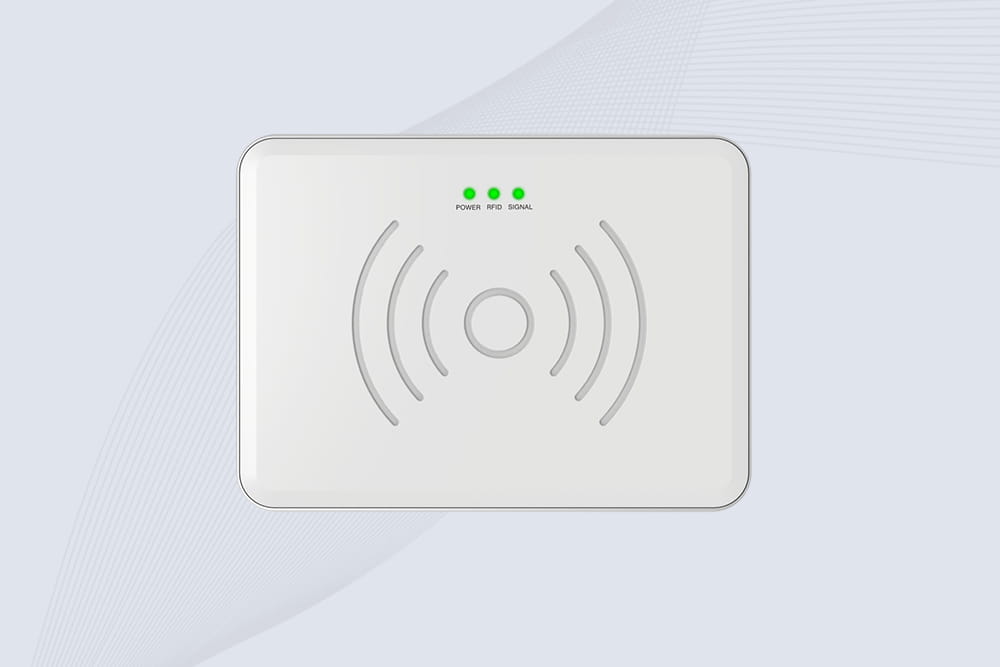
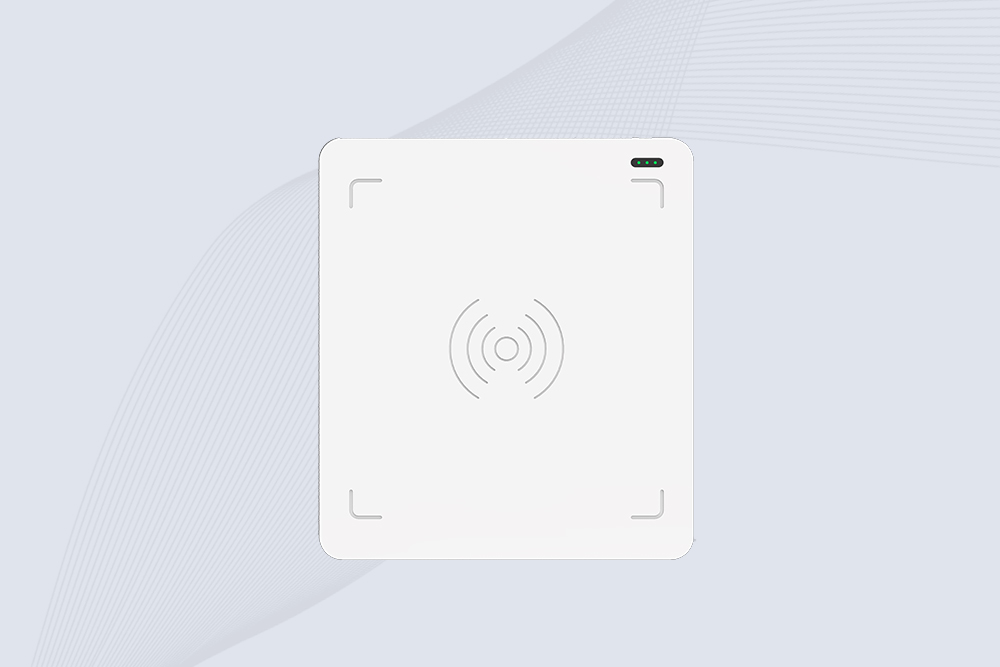
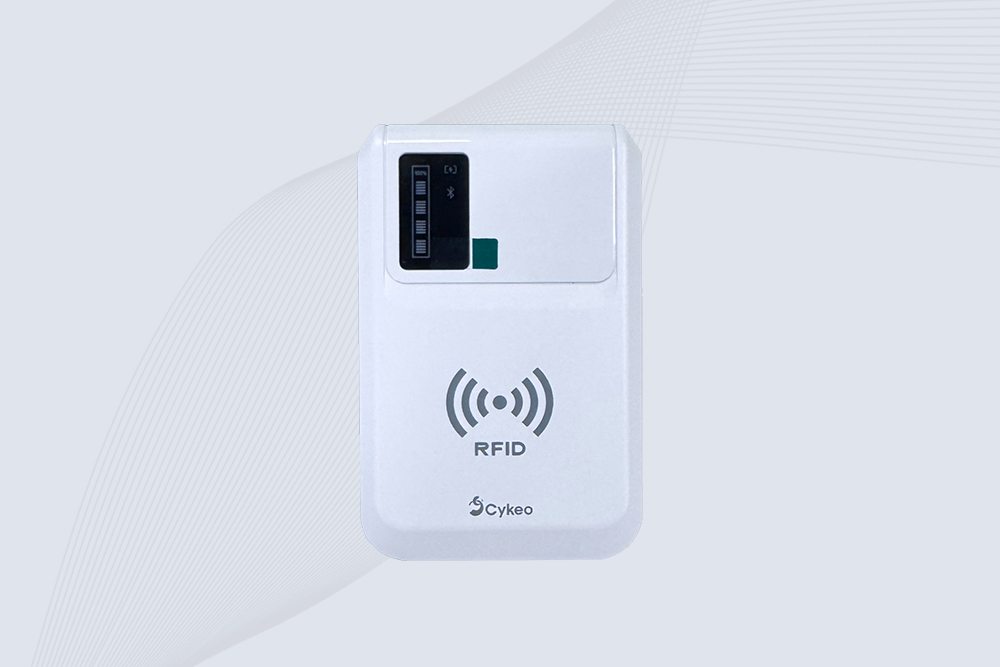
    • Mount Cykeo’s UHF RFID reader at checkout stations, ensuring a ​​30–60 cm​​ distance from the scanning surface.
    • Angle the antenna at ​​45°​​ to maximize tag reads on books placed flat or upright.
  2. ​​Power & Connectivity:​​
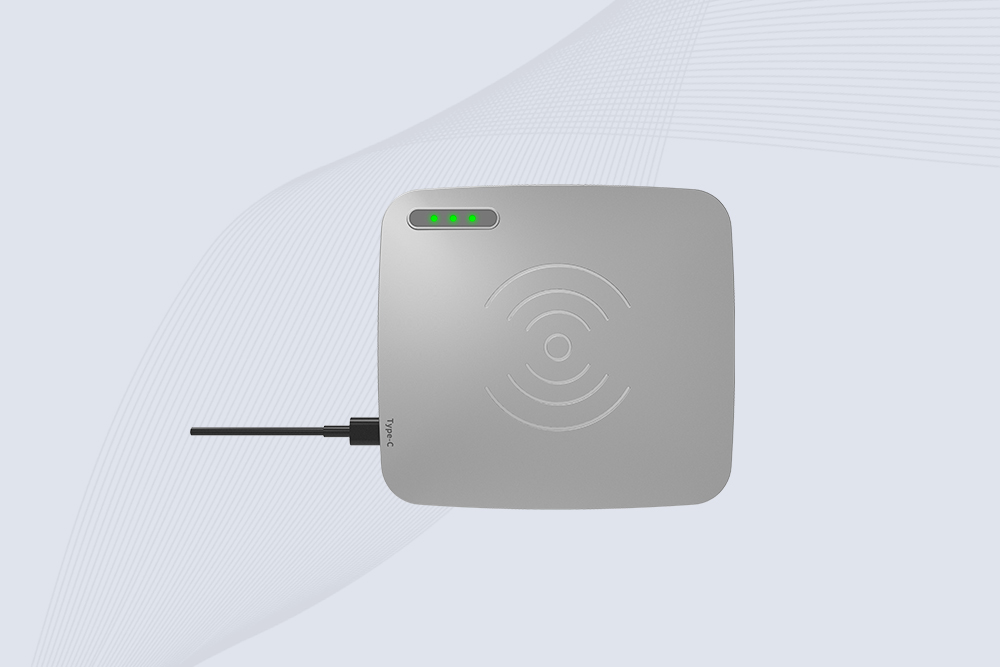
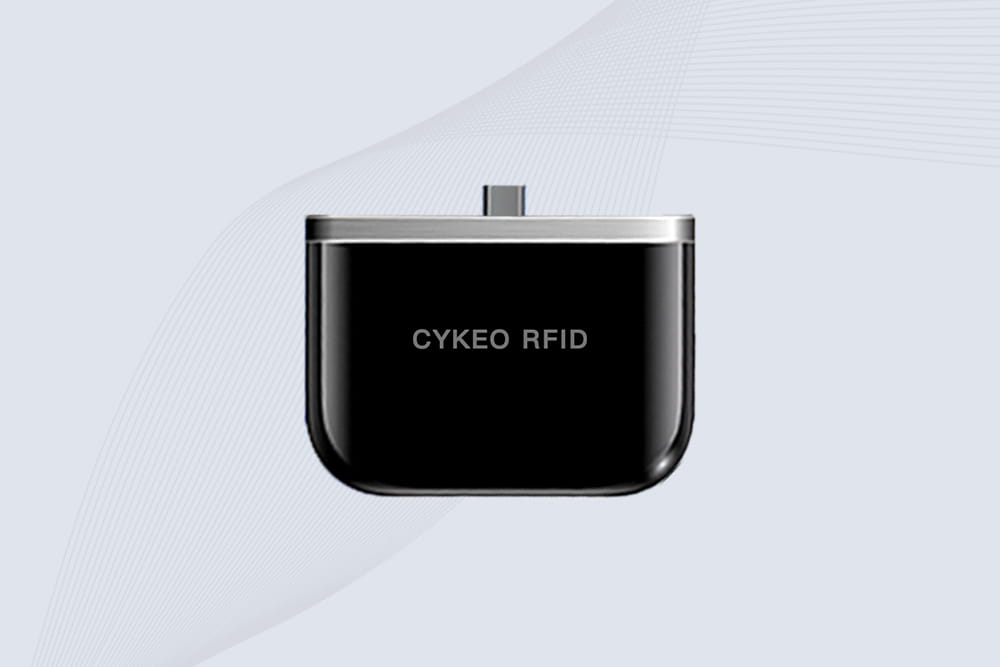
    • Connect the reader to a power source and link it to library PCs via ​​USB​​ or ​​Ethernet​​.
    • Enable ​​Bluetooth/Wi-Fi​​ for mobile staff scanners (if applicable).

​​2. Configure Reader Settings​​

  • ​​Frequency & Power:​​
    • Set to ​​865–928 MHz​​ (region-specific UHF band) with ​​30 dBm​​ power for optimal range.
    • Adjust power lower in small spaces to avoid cross-reads.
  • ​​Anti-Collision Mode:​​
    • Activate ​​Dense Reader Mode (DRM)​​ to manage simultaneous tag reads (e.g., stacks of books).
  • ​​Data Format:​​
    • Encode tags in ​​ISO 28560-2​​ format to align with library standards.

​​3. Integrate with Library Management Software​​

  1. ​​ILS Compatibility:​​
    • Ensure Cykeo’s reader supports your ​​Integrated Library System (ILS)​​ like ​​Koha​​, ​​Sierra​​, or ​​Polaris​​.
  2. ​​API/Plugin Installation:​​
    • Install Cykeo’s ILS plugin to sync RFID data with patron accounts and inventory databases.
  3. ​​Map Data Fields:​​
    • Link RFID tag IDs to book titles, barcodes, and due dates in your ILS.

​​4. Test & Optimize​​

  • ​​Tag Placement:​​
    • Embed RFID tags in book spines or back covers, ​​2–3 cm from metal​​ (e.g., CDs/DVD cases).
  • ​​Read Accuracy Checks:​​
    • Perform test scans with 50–100 books. Aim for ​​≥98% accuracy​​; adjust antenna angle/power if needed.
  • ​​Patron Training:​​
    • Simplify self-checkout screens to display ​​“Scan All Books Here”​​ prompts.

​​5. Maintain & Update​​

  • ​​Firmware Updates:​​
    • Download Cykeo’s latest firmware quarterly to fix bugs and improve security.
  • ​​Cleaning:​​
    • Wipe readers weekly with ​​alcohol-free disinfectant​​ to prevent damage.
  • ​​Tag Audits:​​
    • Replace tags with read failures and update ILS records monthly.

​​Why Choose Cykeo?​​

  • ​​Plug-and-Play ILS Integration:​​ Pre-configured templates for major library systems.
  • ​​24/7 Support:​​ Dedicated helpdesk for libraries.
  • ​​Scalability:​​ Add more readers or kiosks as your library grows.
PgUp: PgDn:

Relevance

View more