How to Use RFID Module with Mega Board
So you’ve outgrown your Arduino Uno? Maybe you need more pins for sensors, or you’re building a system that has to manage multiple RFID tags. That’s exactly why I moved to the Mega Board. Learning how to use RFID module with Mega Board like the Arduino Mega 2560 opens up a world of possibilities for more complex projects. The good news? It’s not much harder than using an Uno, but there are a couple of pin differences that once tripped me up. Let’s get your RFID module talking to that powerful Mega.
Why Choose the Mega Board for RFID Projects?
The Arduino Mega 2560 isn’t just a bigger Uno. With 54 digital I/O pins and 15 PWM pins, it’s a game-changer for RFID applications. I started using it when my RFID-based inventory tracker needed to also run an LCD display, a keypad, and log data to an SD card—all at the same time. The Uno simply ran out of ports. The Mega handled it effortlessly. It’s perfect for systems that go beyond a simple single LED trigger, like multi-user access control or interactive exhibits with many trigger points.
Essential Components for Your Setup
Gathering the right parts is the first step. You’ll need:
- Arduino Mega 2560 Board: The star of the show.
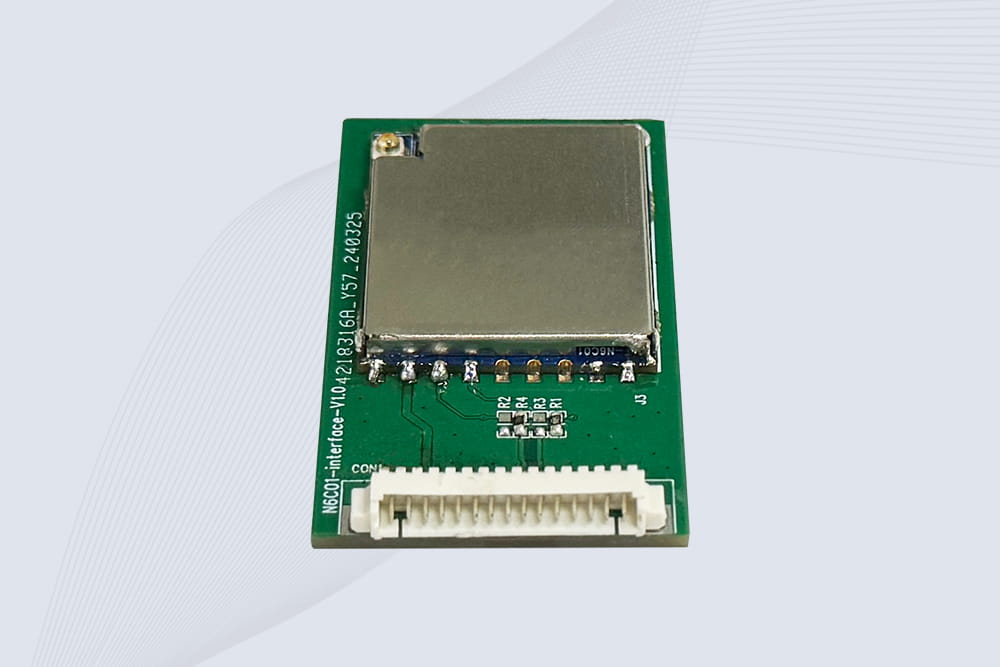
- RFID-RC522 Module: The standard and reliable reader. I’ve used modules from various brands, and ones from CYKEO tend to have consistent pin headers and clear documentation.
- Jumper Wires (Male-to-Female recommended): Makes connecting to the Mega’s pins easier.
- Breadboard (optional but helpful): For organizing your circuit.
- RFID Tags/Cards: Usually included with the RFID reader.
- Output Components (e.g., LEDs, Servo, LCD): To see your RFID system in action.
Wiring: Mind the Pins (It’s Different from Uno!)
This is the crucial part. While the wiring logic is the same, the Mega’s pin labels differ. Connecting the RC522 incorrectly is the most common mistake. Here’s the correct mapping:
Connect your RC522 module to the Arduino Mega as follows:
- RC522 VCC → Mega 3.3V pin (Never to 5V!)
- RC522 GND → Mega GND (any)
- RC522 SDA/SS → Mega Digital Pin 53 (This is the big difference!)
- RC522 SCK → Mega Digital Pin 52
- RC522 MOSI → Mega Digital Pin 51
- RC522 MISO → Mega Digital Pin 50
- RC522 RST → Mega Digital Pin 49
My Protip: On the Mega, the 3.3V pin is located near the AREF pin, separate from the power jack area. Double-check this! I once spent 30 minutes debugging a “dead” module only to find I’d plugged VCC into the wrong 3.3V header on my breadboard.
Writing & Uploading the Code
The code library is the same, but your pin definitions must match the wiring above.
- Install the Library: In the Arduino IDE, go to Sketch > Include Library > Manage Libraries…. Search for “MFRC522” by GithubCommunity and install it.
- Use the Correct Pinout in Code: You can modify the
DumpInfo example from the library. Here’s a core snippet highlighting the Mega-specific pins:
cpp
#include <SPI.h>
#include <MFRC522.h>

// Define pins for ARDUINO MEGA 2560
#define RST_PIN         49
#define SS_PIN          53 // Slave Select on Pin 53

MFRC522 mfrc522(SS_PIN, RST_PIN);

void setup() {
    Serial.begin(9600);
    while (!Serial); // For native USB port
    SPI.begin();
    mfrc522.PCD_Init();
    Serial.println(F("Arduino Mega RFID Test"));
    mfrc522.PCD_DumpVersionToSerial();
}

void loop() {
    // Reset the loop if no new card present
    if ( ! mfrc522.PICC_IsNewCardPresent()) {
        return;
    }
    // Select one of the cards
    if ( ! mfrc522.PICC_ReadCardSerial()) {
        return;
    }
    // Dump UID and other info to Serial Monitor
    Serial.print(F("Card UID:"));
    mfrc522.PICC_DumpToSerial(&(mfrc522.uid));
}
- Upload and Test: Open the Serial Monitor (
Ctrl+Shift+M), set the baud rate to 9600. When you bring a tag near the reader, you should see its unique UID and details printed. This confirms your hardware setup is correct.
Project Ideas That Leverage the Mega’s Power
Once you’ve mastered the basic connection, the Mega’s capabilities let you build impressive systems:
- Multi-Tag Inventory Database: Use the Mega’s multiple serial ports to connect a GPS module (for location logging) and an SD card shield to log specific tag scans with a timestamp and location.
- Advanced Access Control Panel: Combine the RFID reader with a keypad, an LCD screen for messages, a servo motor to unlock a latch, and a buzzer for audio feedback. The Mega has enough pins for all these components without needing multiplexers.
- Interactive Museum Display: Use different RFID-tagged objects to trigger different video or audio sequences played on connected shields, while also lighting up specific LED zones on a large map.
I built a prototype for a smart tool cabinet using the Mega. It logged which tool (with an RFID tag) was checked out by which employee (with their RFID card), displaying the status on a 20×4 LCD. The Uno couldn’t have handled all those peripherals smoothly.
Troubleshooting: Common Mega-Specific Issues
- “Reader Not Found” or No Serial Output: This is almost always the pin wiring. Re-check that SS is on Pin 53. Also, ensure the SPI pins (50, 51, 52) are correctly connected. A loose connection on the breadboard is a frequent culprit.
- Module Gets Hot: Immediately disconnect power! You have likely connected VCC to 5V instead of 3.3V. The RC522 is a 3.3V device.
- Intermittent Reads: Ensure the RST pin is properly connected to Pin 49. Also, move power-hungry devices like servos to a separate 5V power source instead of drawing from the Mega’s regulator.
RFID Module Recommendation
 Cykeo RFID IoT Solution Products R&D Manufacturer