 Cykeo RFID IoT Solution Products R&D Manufacturer


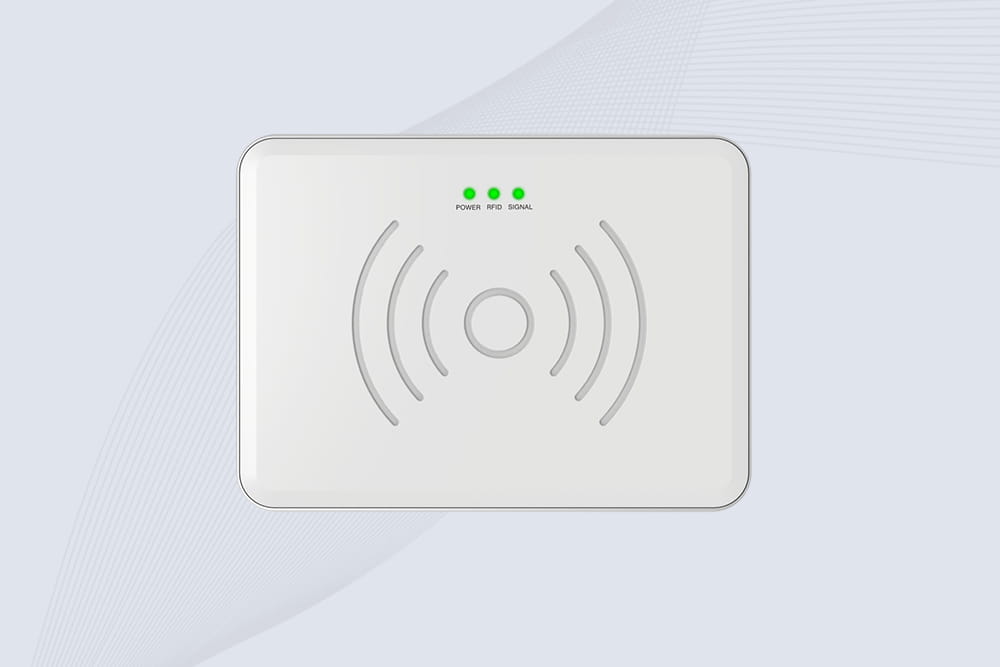
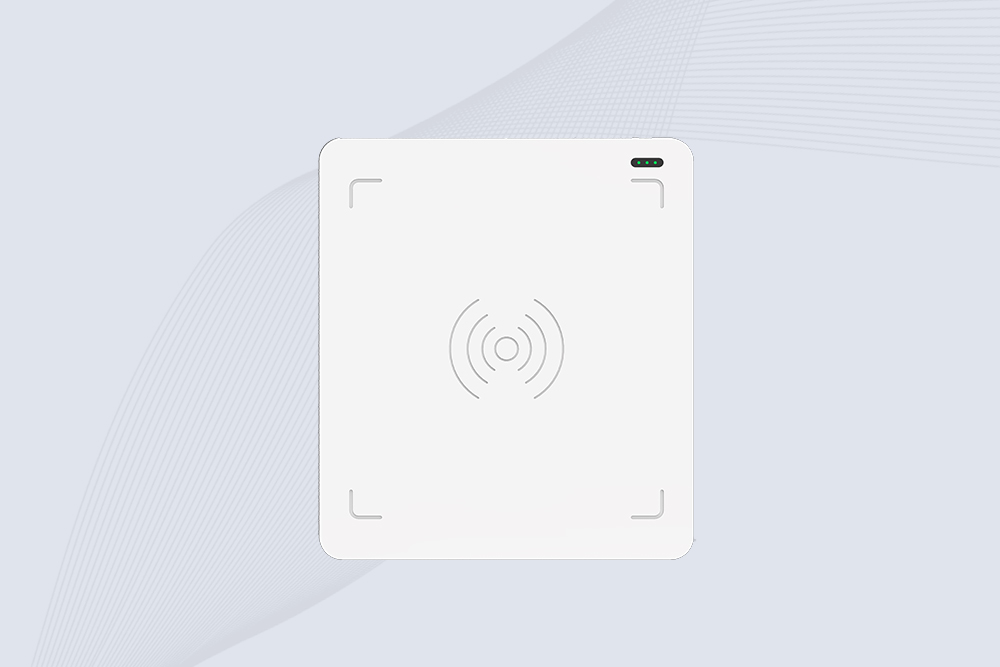
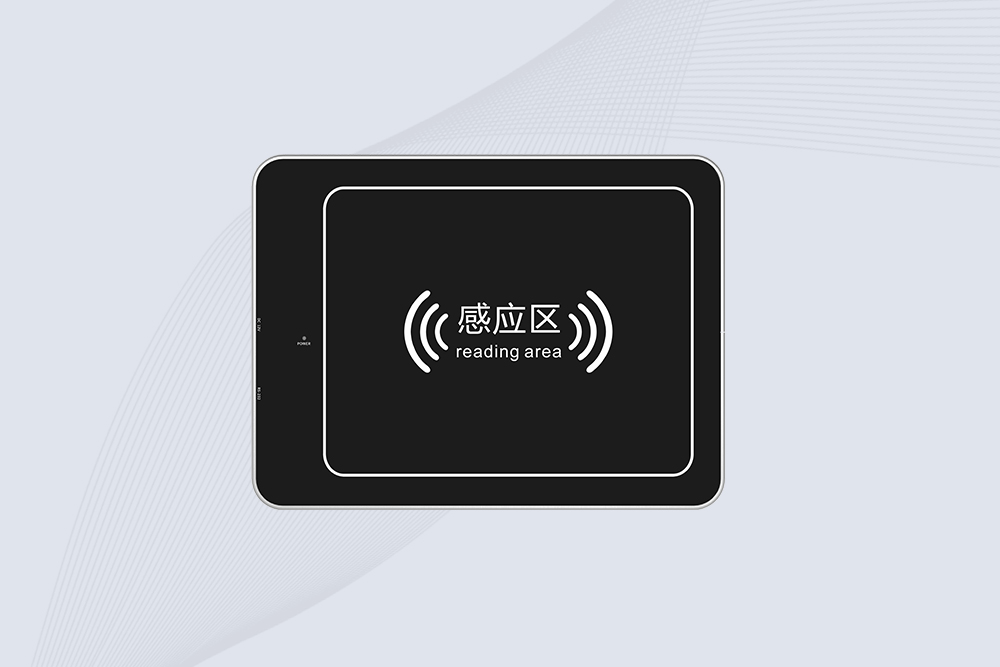
RFID Reader for Industrial Automation: Where It Fits and What to Check
130Learn how RFID readers are used in industrial automation for production lines, conveyors, work-in-process tracking and equipment identification. See what to ...
MoreAll RFID Product
You plugged in your USB RFID reader, but Windows 11 acts like it’s invisible. The driver won’t install, your inventory software ignores it, and you’re one error message away from tossing it out the window. Sound familiar? Let’s fix this mess—no tech jargon, just straight fixes to get you scanning in 15 minutes.
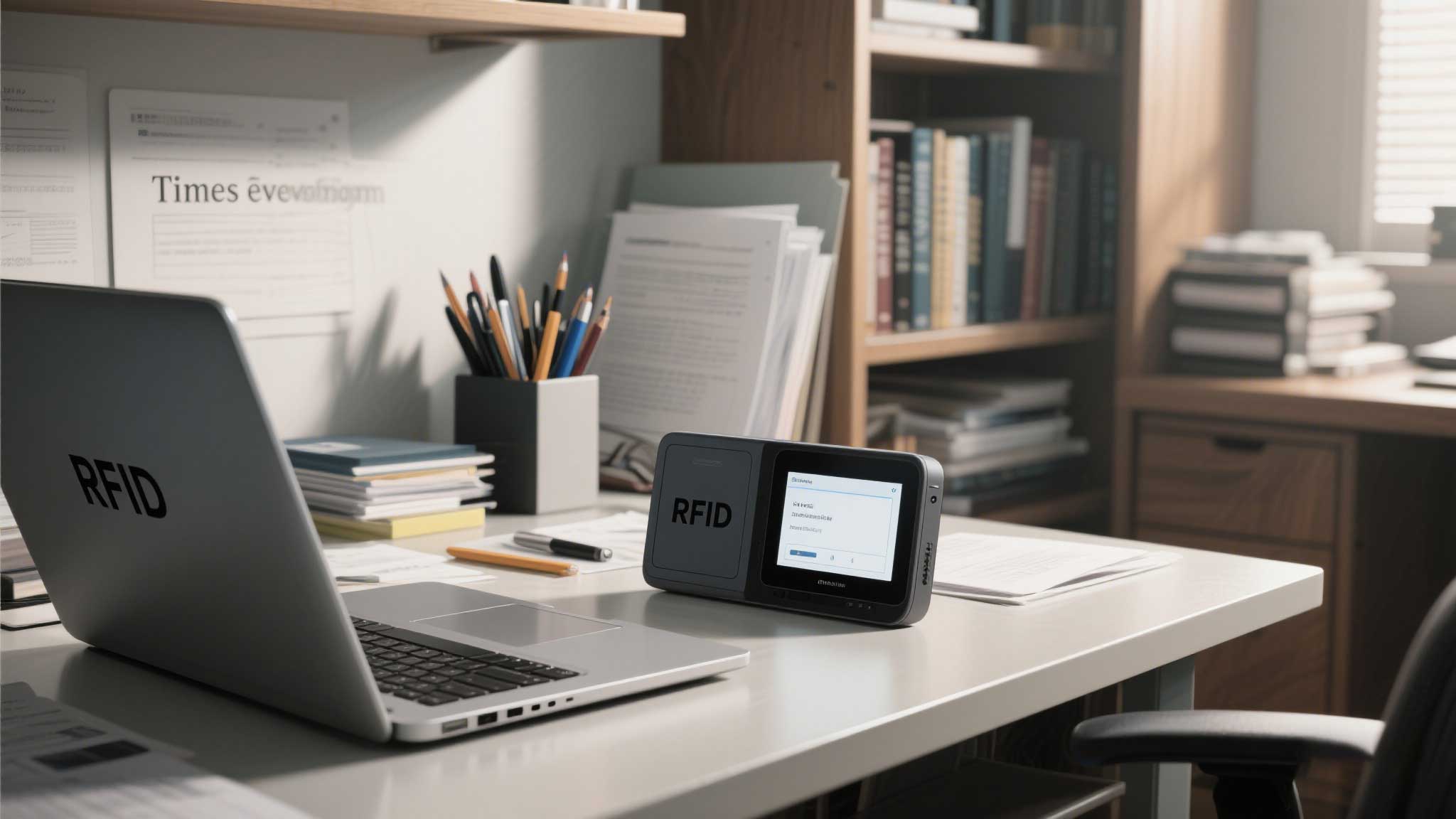
a. Automatic Install (For Most Readers)
b. Manual Install (If Windows Gives Up)
Pro Tip: Disable driver updates to prevent Windows from overwriting:
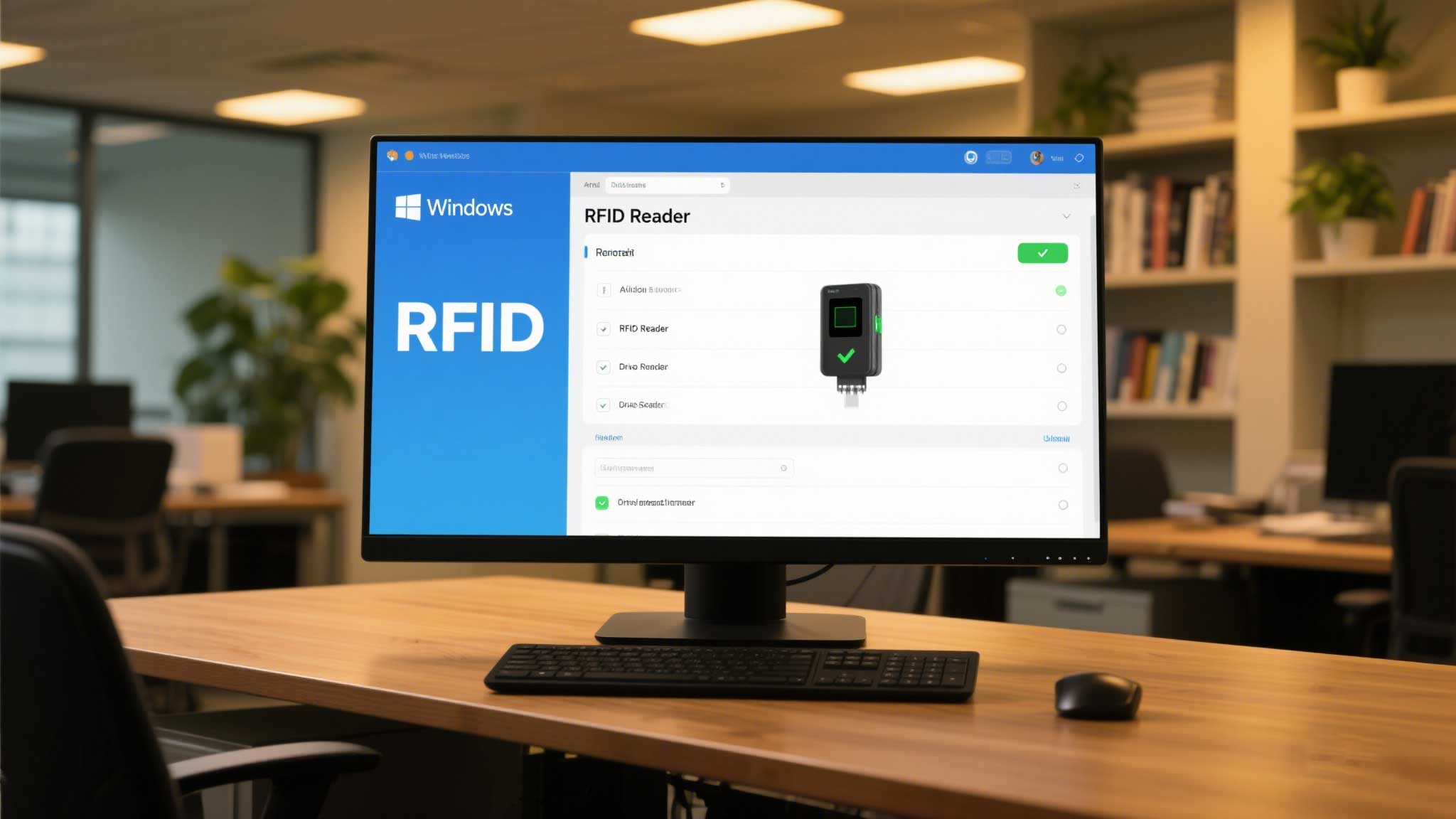
a. Use Notepad for a Quick Check
b. Verify in Device Manager
a. Recommended Free Tools
b. Software Setup
Cykeo Bonus: Their free “ScanLite” software auto-detects most USB readers without complex configs.
a. “Device Not Detected”
b. “Tag Scanned, But Software Ignores It”
c. “Inconsistent or Slow Reads”
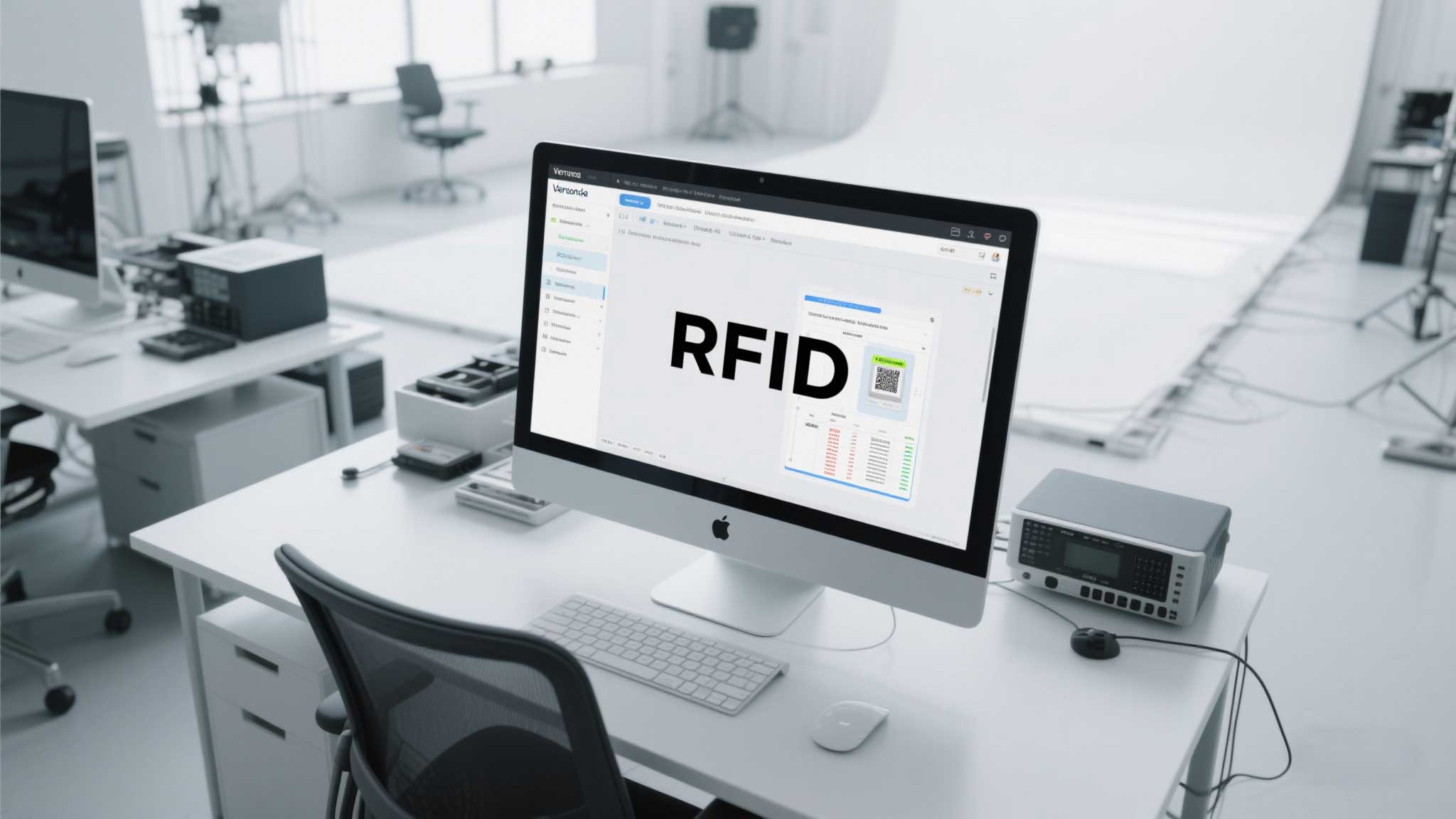
a. Assign Tag IDs to Products
b. Schedule Bulk Scans
c. Backup Your Config
Takeaway: Setting up a USB RFID reader on Windows 11 isn’t about luck—it’s about brute-forcing drivers and testing with free tools first. Skip the frustration, follow these steps, and if your reader still acts up? Return it. Life’s too short for flaky tech.
Learn how RFID readers are used in industrial automation for production lines, conveyors, work-in-process tracking and equipment identification. See what to ...
More
RFID readers can make retail inventory checks much faster by identifying multiple tagged products without requiring employees to scan every item individually...
More
Explore RFID Anti-Metal Tags—their principles, types, and applications—from factories to data centers, with real-world lessons and pitfalls.
More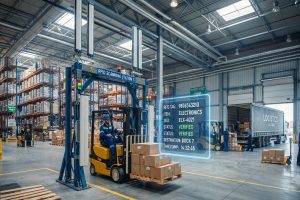
Looking for a long range RFID scanner for logistics centers? Learn how RFID scanners improve pallet tracking, dock door management, inventory visibility, and warehouse efficiency. Discover what matters before choosing an industrial RFID solution.
More