 Cykeo RFID IoT Solution Products R&D Manufacturer
RFID and Healthcare Work Applicaitons For Medical Environment
63RFID and healthcare solutions improve medical inventory accuracy, reduce manual workload, and enable real-time UHF tracking for surgical consumables and hospital assets.
MoreAll RFID Product
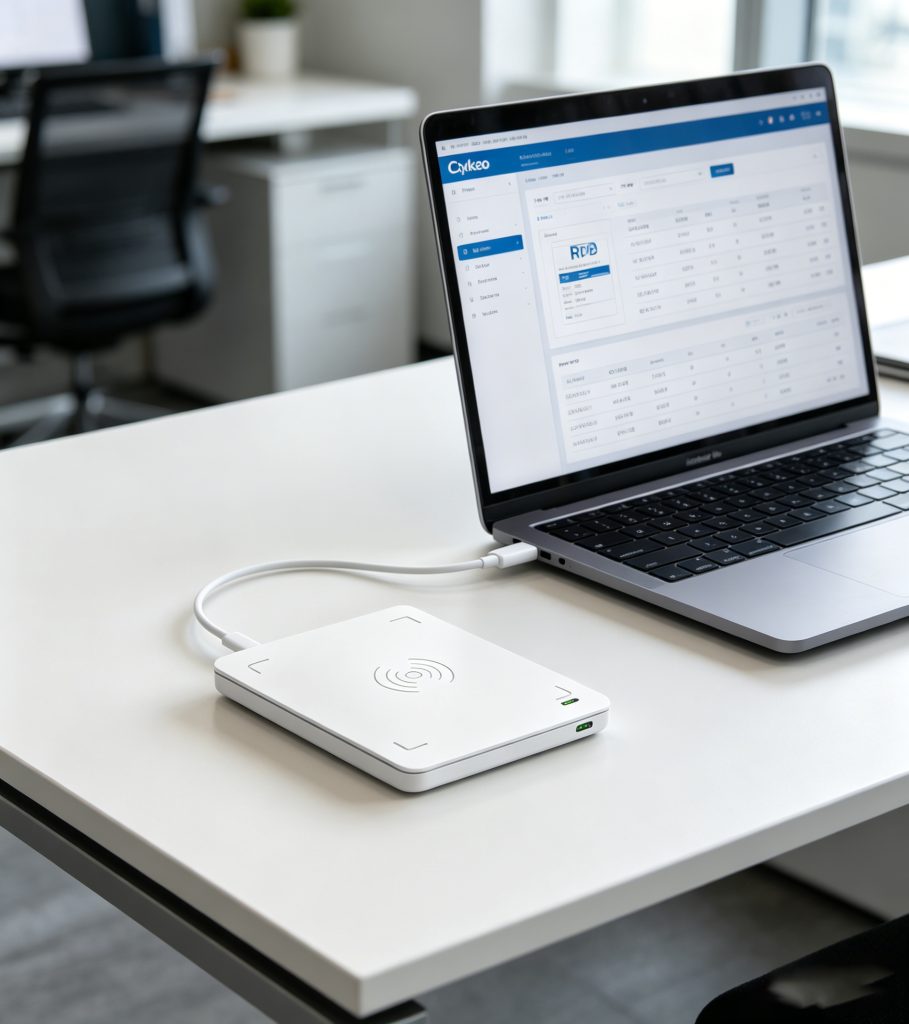
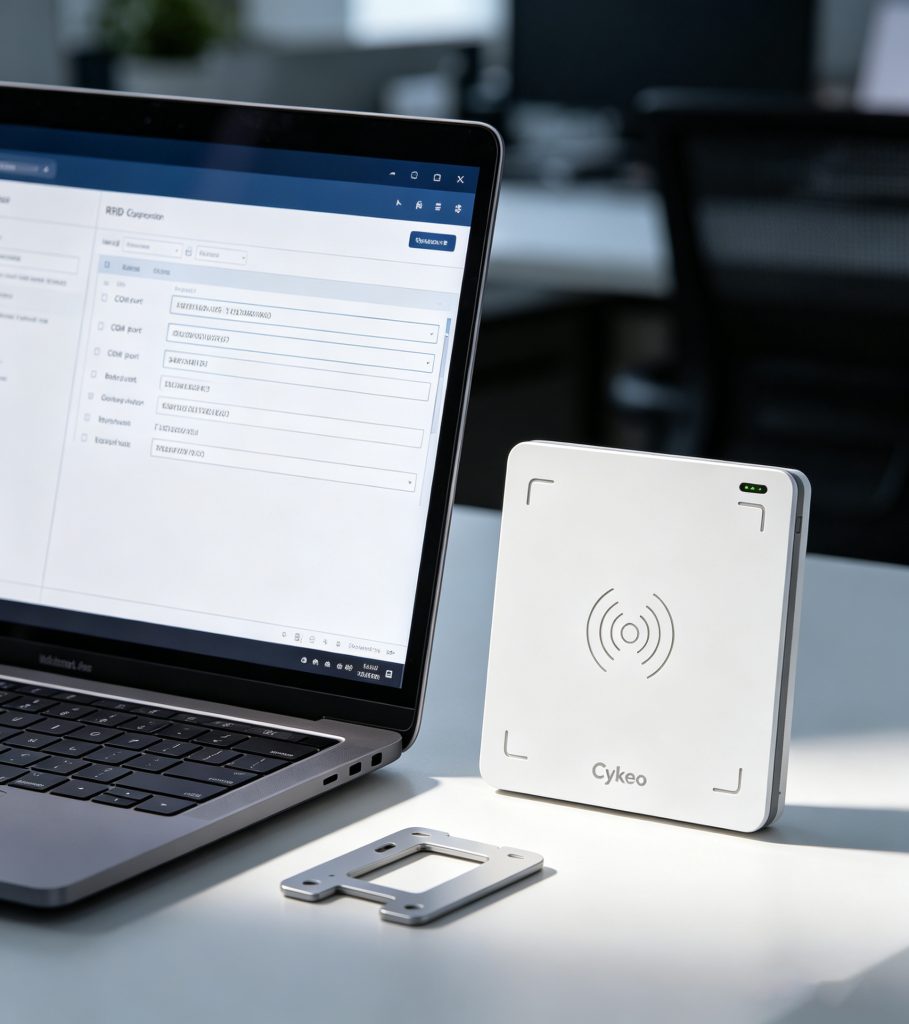
To connect RFID, link the reader to a host device via USB, Type-C, or network, install drivers, configure communication parameters, and verify data transmission by scanning a tag and receiving its ID in software.
That’s the straightforward answer. In reality, the difference between a “connected” RFID system and a reliable one often shows up only after a few hundred reads—when timing, interference, and configuration start to matter.
RFID isn’t just a cable connection—it’s a system loop:
Miss one alignment, and the system looks connected but behaves unpredictably.
| Component | Role | Key Requirement |
|---|
| RFID Reader | Signal generation | Stable power + interface |
| Antenna | RF transmission | Proper matching |
| Host (PC/mobile) | Data processing | Driver + software |
| Tag | Data storage | Frequency compatibility |
Choose based on your deployment:
Plug in the reader and confirm power indicators.
Most RFID readers require:
Without proper drivers, the system cannot communicate—even if the device powers on.
Key settings:
This is where many installations silently fail.
Use:
Once connected, you should see device status “connected” or “ready.”
If data appears consistently, your connection is valid.
In a logistics center project I worked on, we installed fixed UHF readers at entry gates. Everything looked fine during setup—until peak hours
Problem:
Solution:
Result: read accuracy improved from ~91% to 98.6% within two days.
Connection isn’t just physical—it’s operational.
According to GS1 :
RAIN RFID Alliance notes that stable reader connectivity is critical for large-scale deployments, especially in retail and supply chain automation.
One subtle issue I’ve seen: the system connects, but reads fluctuate wildly—caused by antenna cable loss, not software.
No. Software or firmware is required to interpret tag data.
When the system reads and displays tag data consistently.
Ethernet is better for large systems; USB is simpler for small setups.
Usually due to antenna issues, wrong frequency, or incorrect configuration.

RFID and healthcare solutions improve medical inventory accuracy, reduce manual workload, and enable real-time UHF tracking for surgical consumables and hospital assets.
More
Can you read RFID with an iPhone? We cut through the hype: your iPhone's NFC is limited, but here's how to connect external readers for UHF/LF tags in real applications.
More
Discover why long-range UHF RFID outperforms traditional barcodes and handheld scanning in warehouses, construction sites, logistics, manufacturing, and asset tracking. Improve inventory visibility and operational efficiency.
More
Learn how RFID for tools helps factories track, manage, and secure tools in real time. Discover how RFID tool cabinets improve efficiency, reduce loss, and support industrial operations.
More