 Cykeo RFID IoT Solution Products R&D Manufacturer

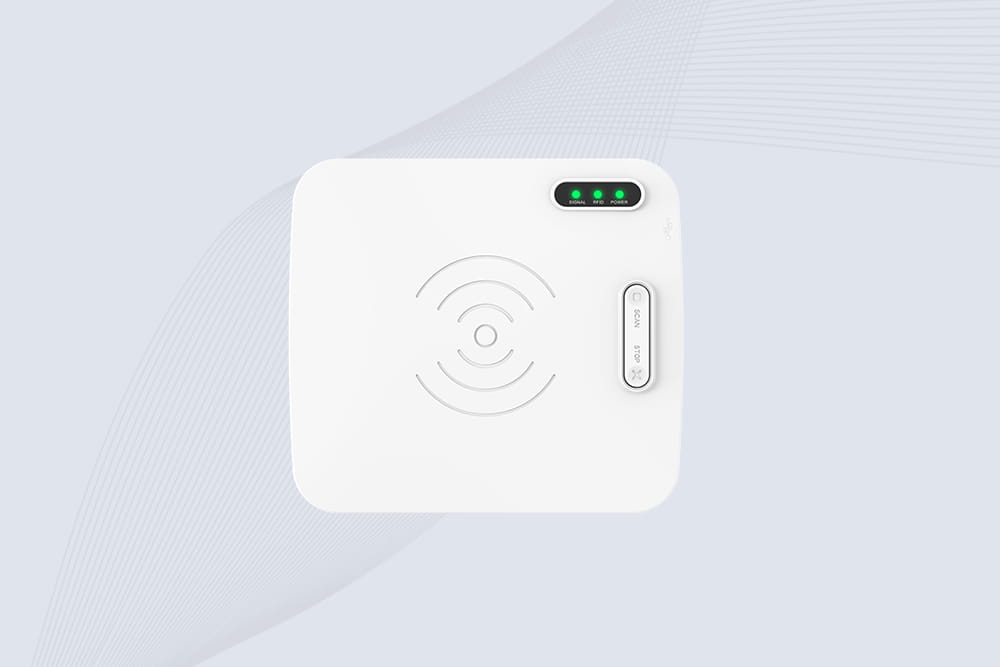
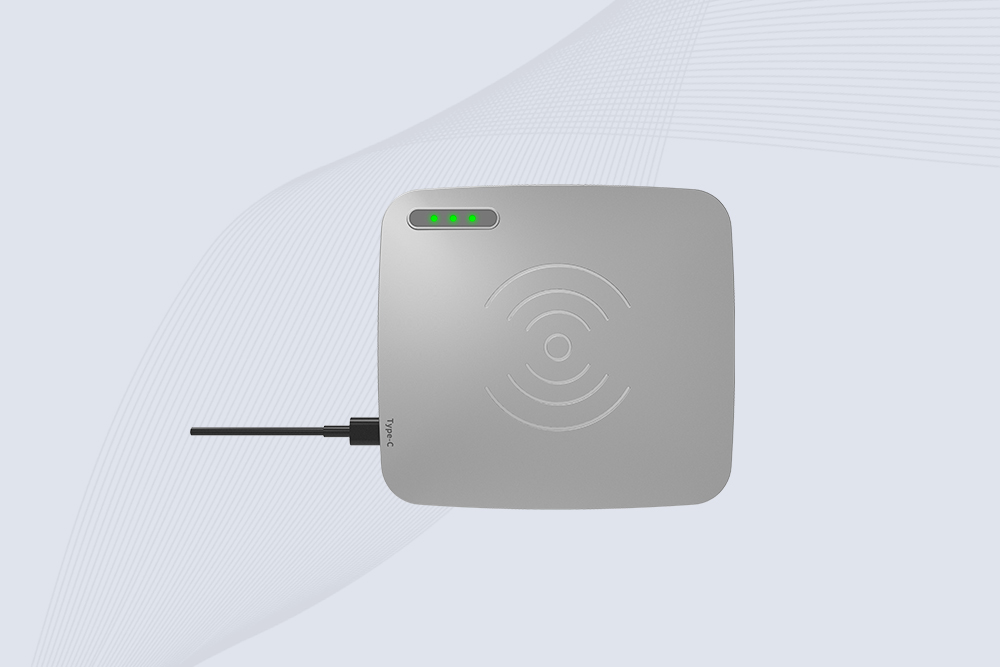
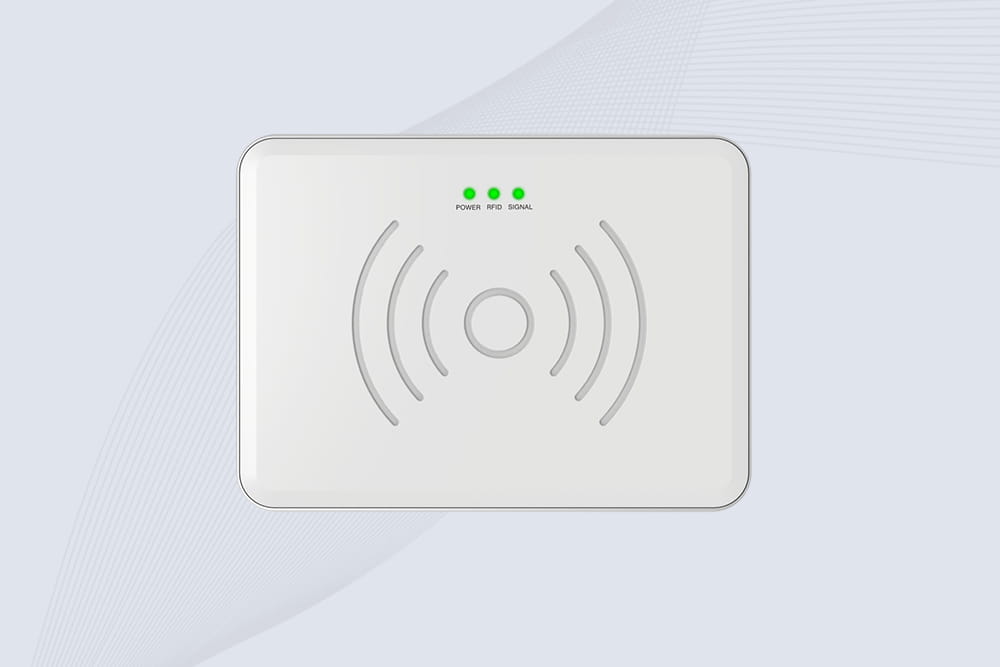
How to Make an RFID Reader with Arduino: What Most Tutorials Don’t Tell You
138Learn how to make an RFID reader with Arduino that actually works. Our hands-on tutorial covers RC522 wiring, library setup, and fixing "tag not found" errors.
MoreAll RFID Product
Scanning Mifare RFID cards on a Mac requires compatible hardware, driver configuration, and specialized software. While macOS doesn’t natively support Mifare protocols, third-party tools and devices like Cykeo’s RFID readers simplify the process. Here’s a detailed guide to get started.
A U.S. university automated student attendance tracking using Cykeo’s Mac-compatible readers, scanning 500+ Mifare cards daily with 99.8% accuracy.
Learn how to make an RFID reader with Arduino that actually works. Our hands-on tutorial covers RC522 wiring, library setup, and fixing "tag not found" errors.
More
Want to learn how to make an RFID reader? We break down the real engineering choices: build a simple HF cloner, integrate a UHF module, or embark on a multi-year RF design journey.
More
Frustrated with short read distances? Learn how to increase RFID reader range with proven tips on antennas, tag placement, and software tuning from CYKEO engineers.
More
RFID (Radio Frequency Identification) readers, as a core component of RFID technology, play a crucial role in the development and management of smart cities. RFID technology enables automated identification, tracking, and management of as...
More