 Cykeo RFID IoT Solution Products R&D Manufacturer
rfid reader uhf: What Makes It Essential for Long-Range RFID Systems?
123Discover how rfid reader uhf devices enable long-range tracking, fast data capture, and automation across logistics, assets, and security with Cykeo solutions.
MoreAll RFID Product
Alright, let’s talk about getting an RFID reader module to actually work. You’ve probably got this little green board covered in pins and a weird coil, maybe from a brand like CYKEO, and you’re staring at it thinking, “Where do I even start?” I was there too. My first attempt was for a makeshift clubhouse “security system” that ended up letting everyone in because I’d wired it backwards. Not my finest hour. But after burning through a module (yes, I fried one), I figured out a reliable process. This guide is that process—no theory deep dives, just the practical steps you need to go from a box of parts to something that beeps and lights up when you wave a card at it.
That little board is an RFID reader, usually the MFRC522 model. It talks to little chips embedded in keycards, tags, or stickers using radio waves. Think of it like a very short-range, dumbed-down version of the contactless payment on your credit card. The module handles all the tricky radio communication; your job is just to power it, wire it correctly, and tell it what to do. The CYKEO ones I’ve used are solid, but the cheap no-name modules work exactly the same way. The core challenge isn’t the tech—it’s getting the physical connections right.
Don’t overcomplicate it. You need:
Forget the servo motor and LCD screen for now. Just get the basic reader-to-LED circuit working first. Trust me.
Here’s the step everyone rushes. Look at your module. See the eight pins? Ignore the one labeled “IRQ.” You need the other seven. The single most important rule: This is a 3.3V device. Plug it into 5V and you’ll smell magic smoke. I learned that the expensive way.
Here’s the wiring map for an Arduino Uno. Say it out loud as you connect each wire:
The antenna is that squiggly copper rectangle. The tag needs to be parallel to it, within an inch or two. Don’t try to scan from the side; it won’t work.
Hardware is silent without software. Here’s the quickest path to a successful scan:
Sketch -> Include Library -> Manage Libraries.... A box pops up. In the search bar, type “MFRC522.” Find the one by “GithubCommunity” and click “Install.” That’s it. This library holds all the secret handshakes the module needs.File -> Examples -> MFRC522 -> DumpInfo. This sketch is your best friend. Upload it to your Arduino.A3 4B C1 9F) are your card’s unique fingerprint. Write this down. This is the key you’ll use to control things.Seeing text is cool, but making light happen is cooler. Let’s make an LED turn on for 3 seconds when the right tag is scanned. This is the core logic of every RFID project.
Replace everything in your Arduino IDE with this code. But first, change the line String authorizedUID = "a34bc19f"; to use your own card’s UID. Use the letters/numbers from the Serial Monitor without the spaces or colons, and make them lowercase.
cpp
#include <SPI.h>
#include <MFRC522.h>

#define RST_PIN 9
#define SS_PIN 10
#define LED_PIN 2 // LED on Pin 2

MFRC522 mfrc522(SS_PIN, RST_PIN);

// >>> REPLACE THIS WITH YOUR TAG'S UID! <<<
// My card's UID was A3 4B C1 9F, so I write:
String authorizedUID = "a34bc19f";

void setup() {
  Serial.begin(9600);
  SPI.begin();
  mfrc522.PCD_Init();
  pinMode(LED_PIN, OUTPUT);
  Serial.println("Ready. Scan a tag.");
}

void loop() {
  // Is a card even there?
  if ( ! mfrc522.PICC_IsNewCardPresent()) {
    return; // Nope. Go back and check again.
  }
  // Can we read it?
  if ( ! mfrc522.PICC_ReadCardSerial()) {
    return; // Failed to read. Check again.
  }

  // Build the UID from the card's data
  String readUID = "";
  for (byte i = 0; i < mfrc522.uid.size; i++) {
    readUID += String(mfrc522.uid.uidByte[i], HEX);
  }
  readUID.toLowerCase(); // Keeps things consistent

  Serial.print("Scanned: ");
  Serial.println(readUID);

  // THE BIG DECISION: Does the UID match?
  if (readUID == authorizedUID) {
    Serial.println("  >> Access GRANTED! LED ON.");
    digitalWrite(LED_PIN, HIGH);
    delay(3000); // LED stays on for 3 seconds
    digitalWrite(LED_PIN, LOW);
  } else {
    Serial.println("  >> Access DENIED.");
    // Maybe flash a red LED here later?
  }
  delay(500); // Short pause before next scan
}
Upload it. If you scan your authorized tag, the LED on Pin 2 should light up. If you scan a different tag, nothing happens. This if-then block is the heart of everything. You can now replace that digitalWrite with commands for a servo, a relay, or a message on a screen.
We all hit these. Let’s fix them:
Once you have the LED trick working, you’ve unlocked the core skill. Now you can start real projects:
if / else if chain to give different tags different effects.The goal isn’t to build a fortress on day one. It’s to make one small thing work reliably. Nail the process of how to use RFID reader module for a single LED, and you can scale it up to almost anything.
RFID Reader Module Recommendation
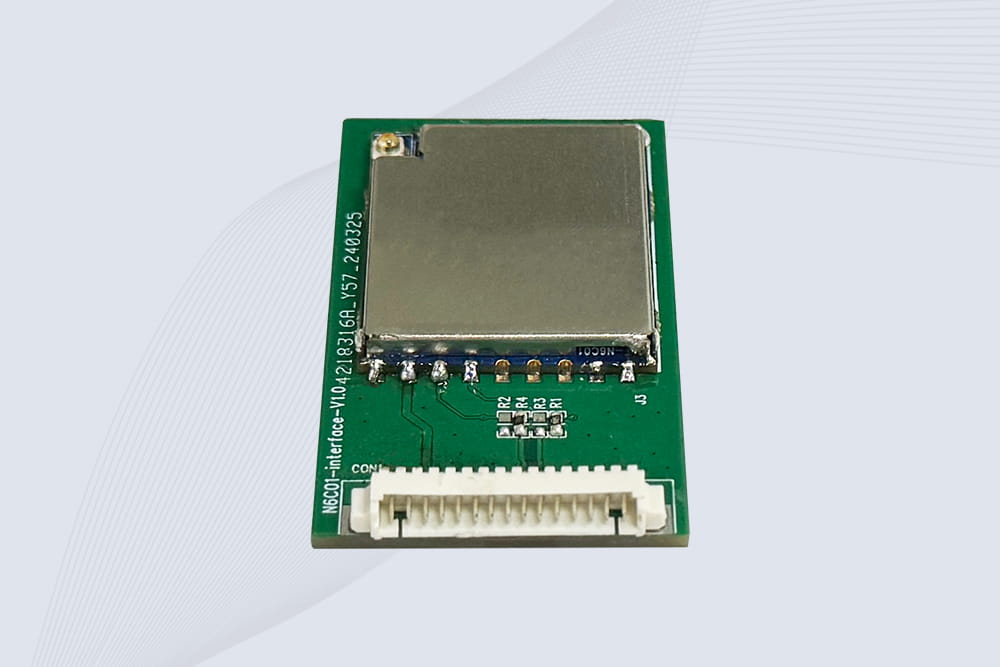
CYKEO Embedded RFID Modules are designed for compact industrial and IoT devices that require stable UHF performance. These UHF RFID Modules support global protocols, flexible power control, and reliable multi-tag reading for smart cabinets, production lines, and asset tracking systems.
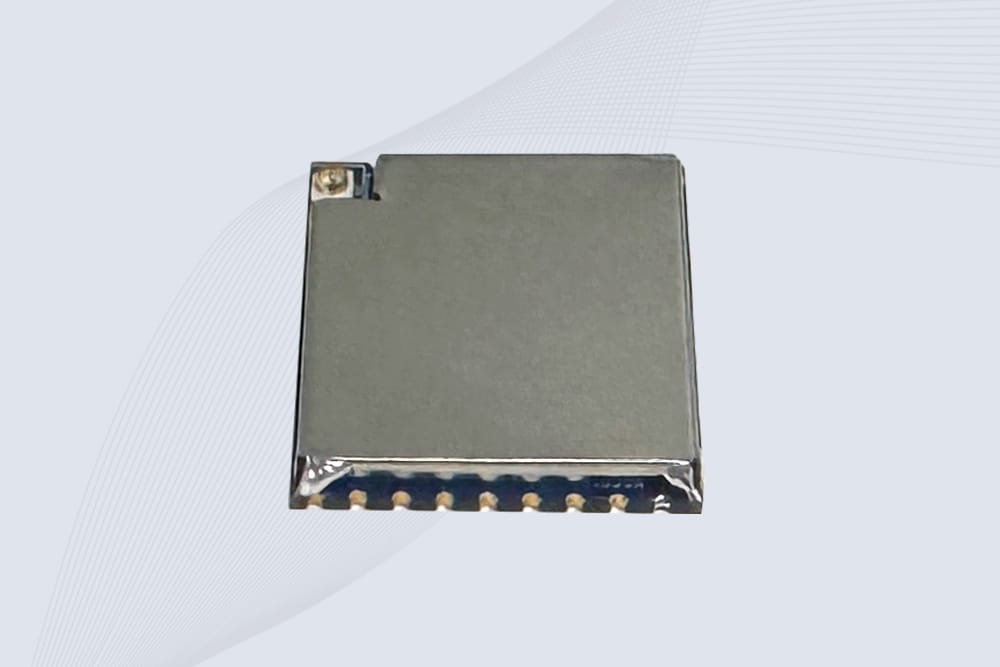
CYKEO Embedded RFID Module is built for compact IoT and industrial devices that need stable UHF performance. This UHF module supports global protocols, low power operation, and reliable multi-tag reading for smart lockers, production lines, and always-on RFID systems.
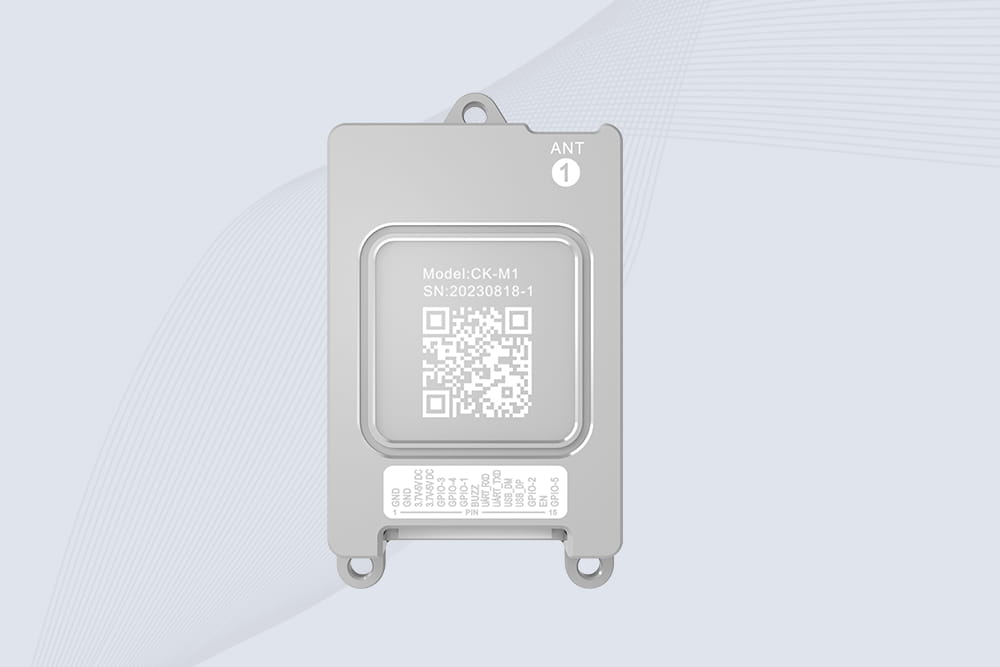
CYKEO CYKEO-M1 drone rfid module is a compact UHF RFID reader module designed for drones and UAV platforms. It supports long-range aerial scanning, fast multi-tag reading, and stable performance in wind, vibration, and outdoor environments.
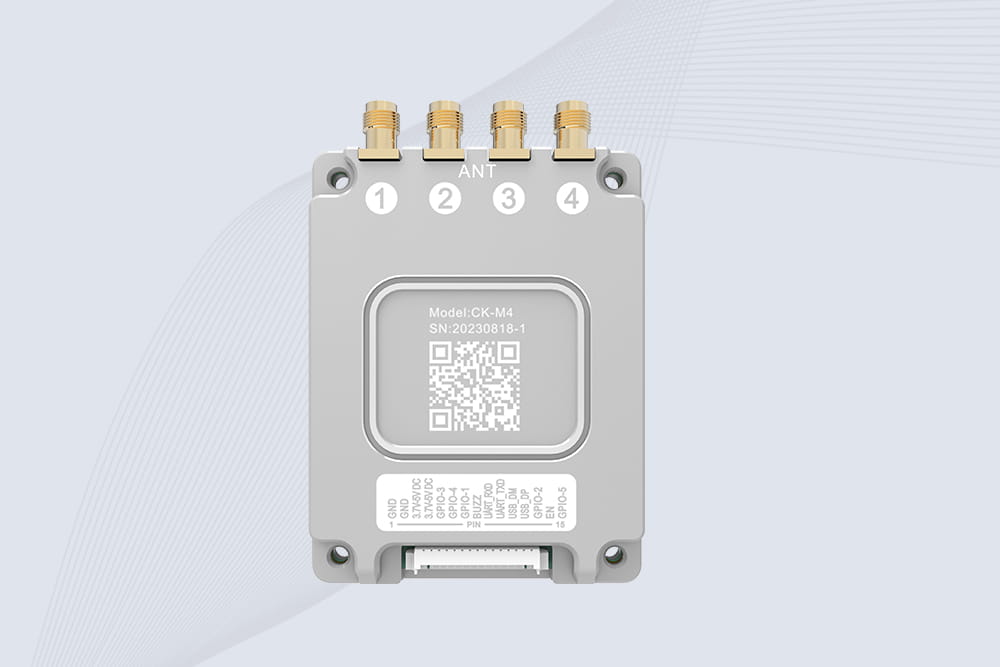
CYKEO CYKEO-M4 RC522 RFID Module is an industrial-grade UHF RFID reader with 4 ports, supporting ISO, EPC, and GB protocols. High-speed, accurate reading for IoT, automation, and warehouse applications.
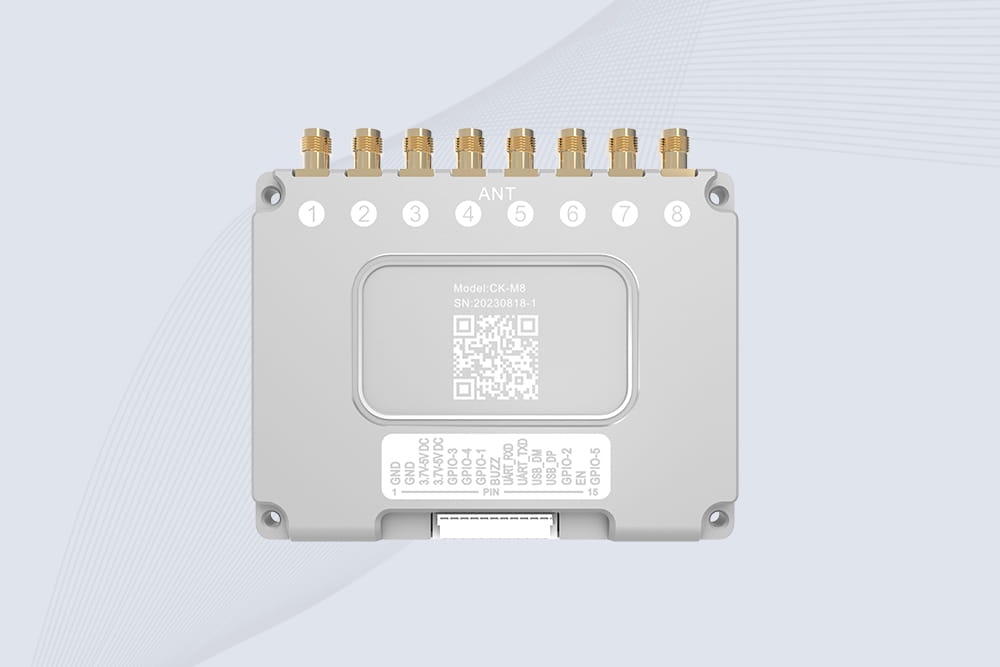
CYKEO CYKEO-M8 Module RFID is an 8-port UHF R2000 RFID Module designed for high-density, multi-tag environments. Stable 33dBm output, ISO & GB protocol support, ideal for warehouses, factories, and automated systems.
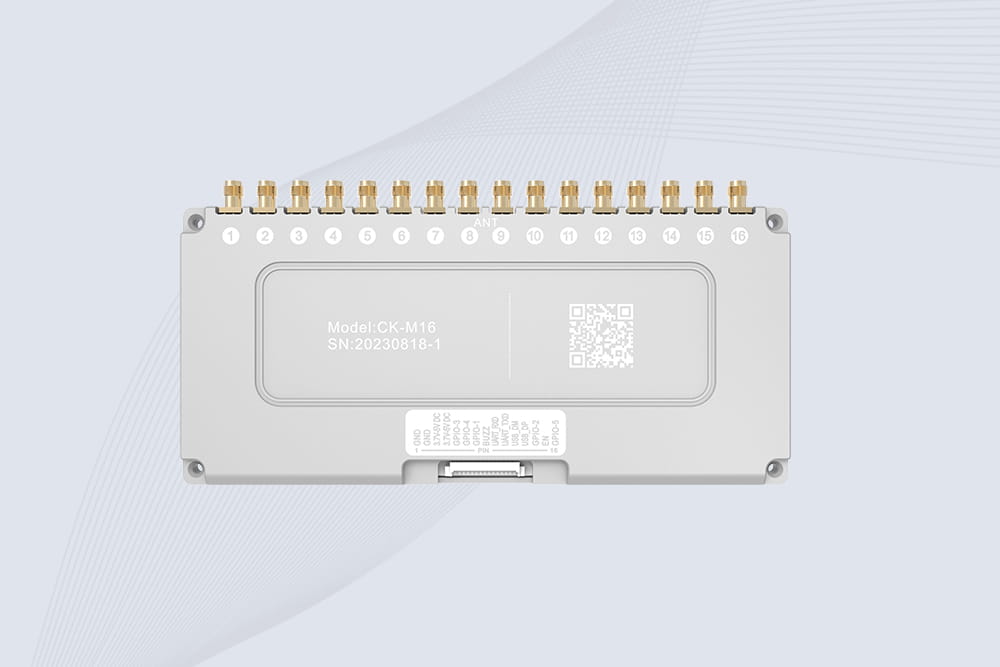
CYKEO CYKEO-M16 RFID Module is a 16-port UHF RFID reader module based on the R2000 chipset. Designed for dense tag environments, it supports ISO and GB standards and delivers stable multi-antenna control for industrial automation.
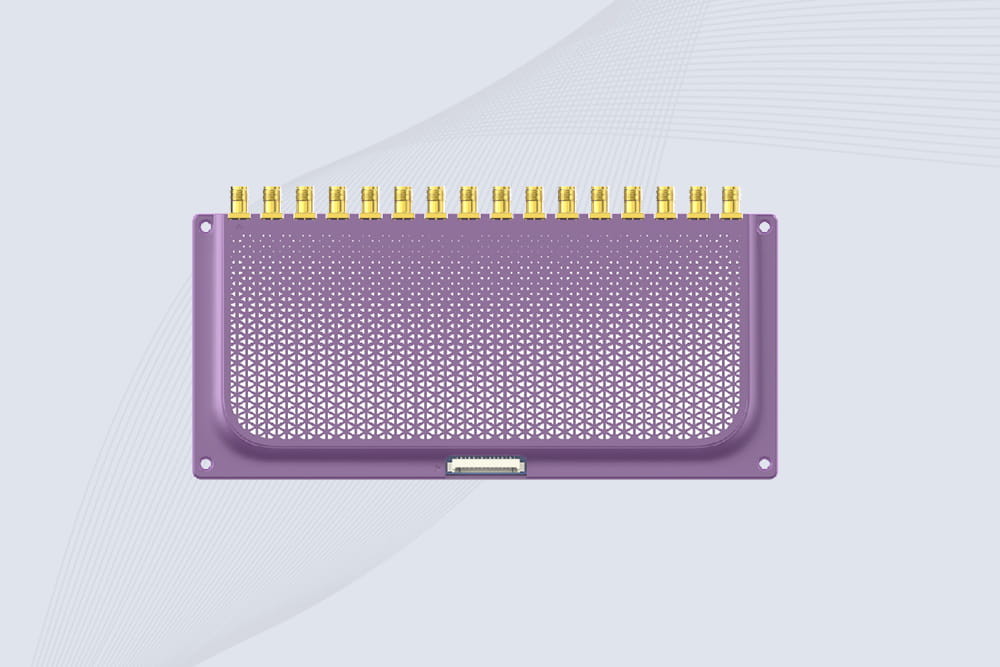
The CYKEO CYKEO-M16L RFID Reader Module is a 16-channel UHF RFID core designed for dense tag environments. With adjustable 33dBm output, multi-protocol support, and stable multi-antenna control, this RFID Tag Reader Module fits industrial automation, warehouse systems, and large-scale IoT deployments.
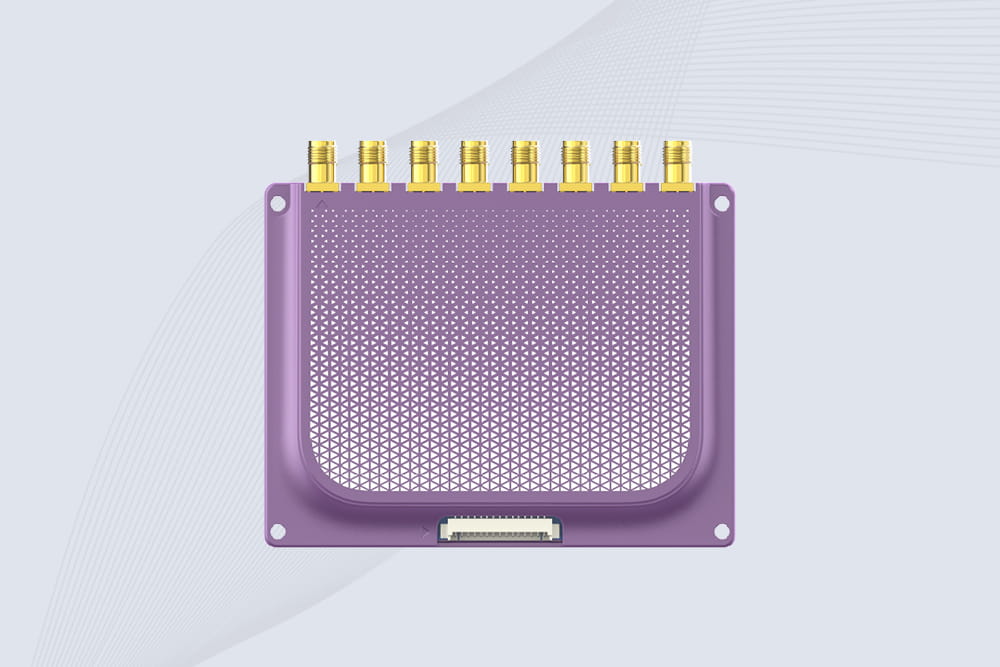
CYKEO CYKEO-M8L module RFID is a compact industrial UHF module built for dense tag and multi-antenna environments. With 8 RF ports, adjustable 33 dBm output, and ISO & GB protocol support, it is widely used in factories, warehouses, and automated tracking systems.
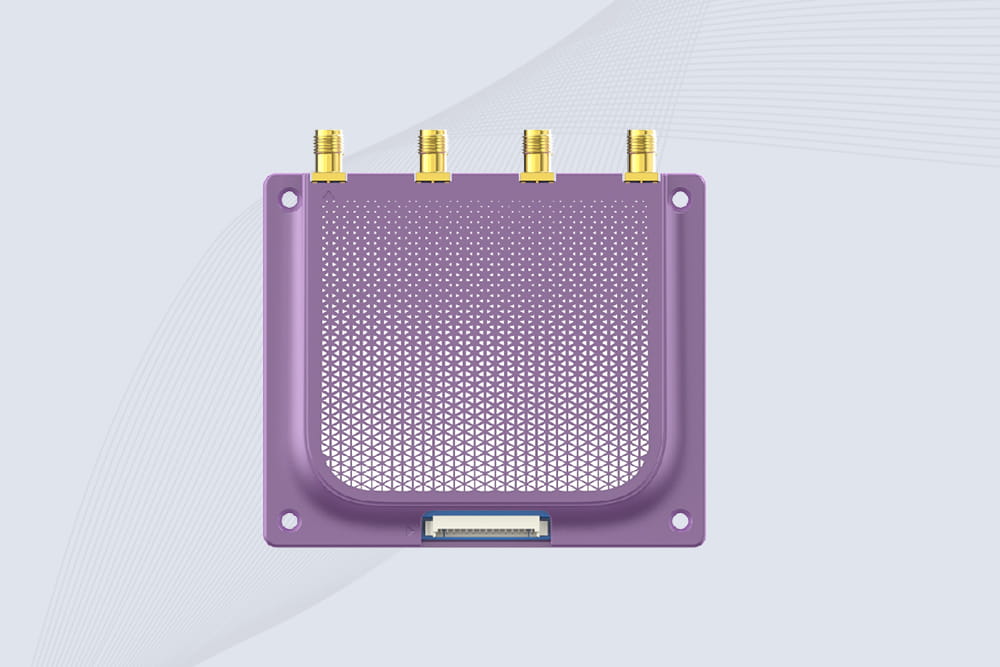
CYKEOCYKEO-M4L UHF RFID Module is a compact 4-channel RFID tag reader module designed for dense tag environments. Supporting ISO and GB protocols, it delivers stable reads up to 10 meters for industrial and IoT systems.

Discover how rfid reader uhf devices enable long-range tracking, fast data capture, and automation across logistics, assets, and security with Cykeo solutions.
More
Discover the key functions of RFID tags: from asset tracking to security. Learn how they automate identification, enhance supply chains, and enable IoT connectivity.
More
Discover which is more expensive, RFID or barcode. We break down costs, use cases, and long-term savings for inventory management. Make informed decisions for your business.
More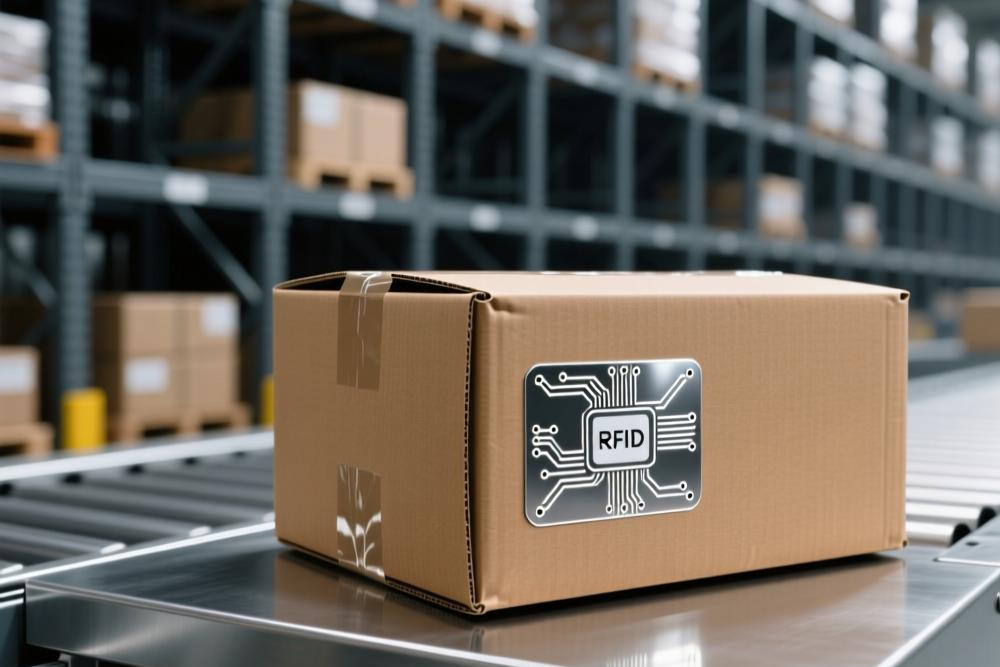
The purpose of an RFID tag is to give an object an electronic identity that a compatible reader can detect wirelessly. Businesses use RFID tags to identify p...
More