To connect a card reader, plug it into a compatible interface (USB, Type-C, or network), install drivers or software, and verify communication through a demo tool or application that reads card data instantly.
That’s the clean version. In real deployments, connection success isn’t just “plug and play”—it’s about driver recognition, power stability, and whether your software actually talks to the hardware. I’ve had setups where the device lights up perfectly… but nothing flows until the COM port is manually mapped.
understanding connection types for card readers
Different environments demand different interfaces. Choosing the right one avoids half the troubleshooting later.
Common connection methods
Interface
Typical Use
Stability
Notes
USB / Type-C
Desktop & portable
High
Plug-and-play, fastest setup
RS-232
Industrial systems
Very high
Legacy but stable
Ethernet
Fixed installations
High
Remote access, scalable
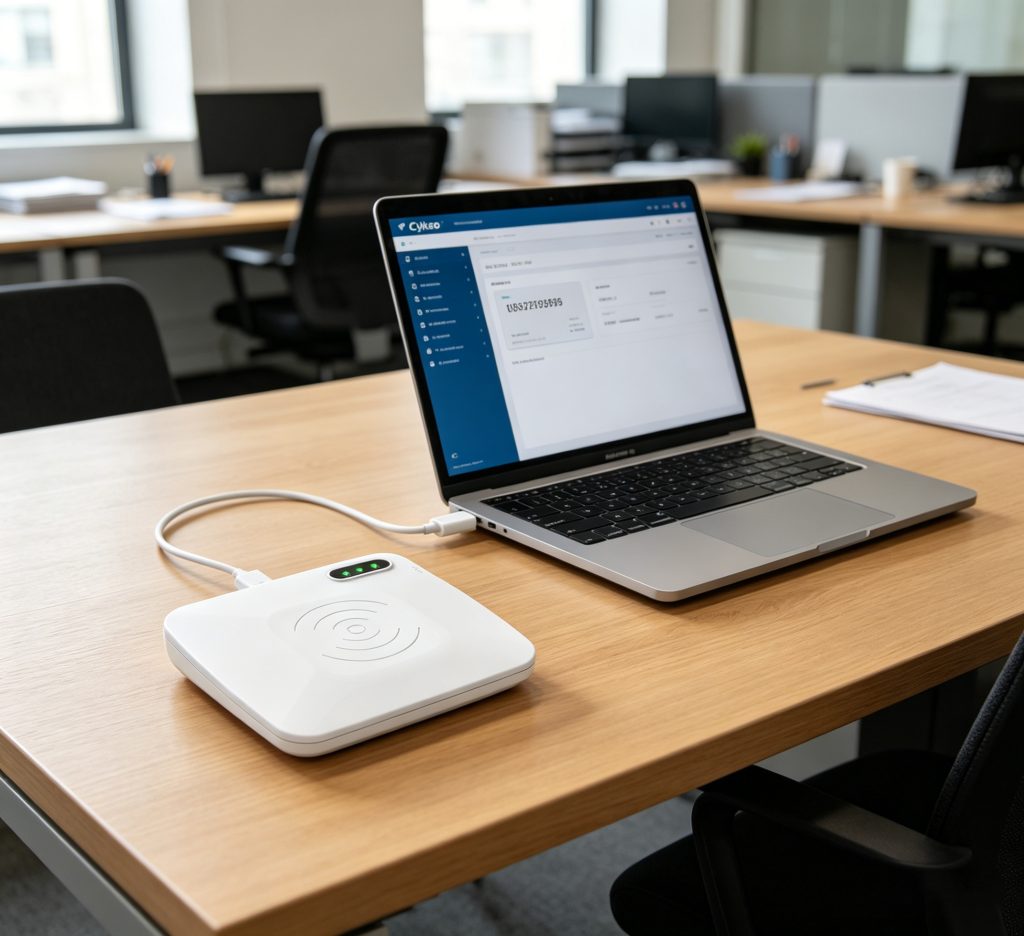
For example, Cykeo desktop encoders use Type-C or Mini USB, which simplifies deployment in office and lab environments.
how to connect a card reader step by step
1. Physical connection
Plug the reader into your PC or device
Ensure stable power supply (especially for high-output RFID devices)
Confirm LED or indicator status
In one warehouse setup, intermittent power from a loose USB hub caused random disconnects—looked like software failure, but it wasn’t.
2. Driver installation
Most RFID readers require:
Virtual COM driver (USB-to-serial)
Device-specific driver package
Without this, your system sees “unknown device.”
3. Software configuration
Install demo or SDK tools:
Select correct COM port
Set baud rate (e.g., 115200)
Match protocol (ISO18000-6C, etc.)
This step is where most first-time users get stuck.
4. Test card reading
Place card/tag within read range
Trigger scan
Verify output (UID/EPC displayed)
If nothing appears, don’t panic—check distance and frequency compatibility first.
real deployment insight (field-tested)
In a recent asset tracking rollout, we installed 12 desktop card readers for tag encoding. Initial failure rate was ~15%. Not hardware—configuration.
After standardizing:
COM port naming
Fixed baud rate
Unified demo software
Failure dropped below 2%.
The lesson: consistency beats complexity.
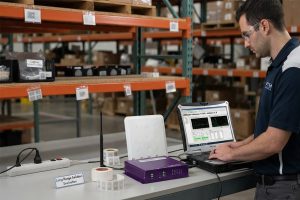
Cykeo desktop card reader connected to a laptop via USB for real-time card reading
industry data and reliability benchmarks
According to GS1:
RFID systems can achieve >99% read accuracy when properly configured
Improper setup can reduce performance by over 30%
RAIN RFID Alliancehighlights that stable reader connectivity is a key factor in large-scale deployments, especially in logistics and retail.
One subtle issue: some systems assign a new COM port each time you reconnect. If your software is fixed to COM3 and the device moves to COM5, it “disappears.”
practical optimization tips
Use direct USB connection instead of hubs
Lock COM port settings in software
Label devices in multi-reader setups
Keep firmware updated
Test with known-good tags first
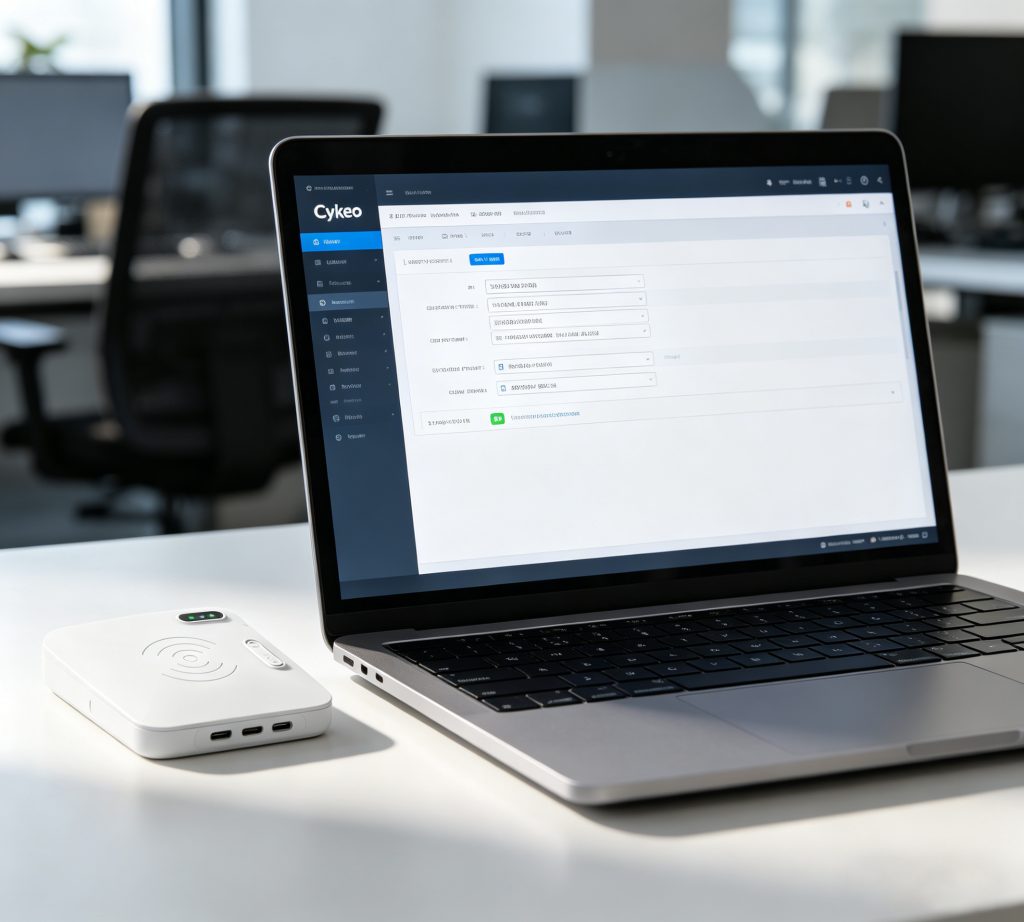
Setting COM port and communication parameters for stable RFID reader connection
FAQ
Do card readers need drivers?
Yes. Most require virtual COM or specific drivers to communicate with software.
Can I connect a card reader to a phone?
Yes, if it supports Type-C or Bluetooth and has a compatible app.
Why is my card reader not detected?
Usually due to missing drivers, faulty cables, or incorrect port selection.
Is USB better than Ethernet?
USB is simpler; Ethernet is better for scalable, remote deployments.
Learn how to optimize long-range RFID readers for livestock tracking. Discover Cykeo’s tips to enhance range and accuracy in rugged farm and ranch environments.
How far away can RFID be detected? Compare UHF, HF, and LF RFID ranges, plus the effects of reader power, antenna design, tag orientation, and materials.
Choosing the right long range RFID scanner is not only about reading distance. Learn what RFID solution providers should consider before buying readers for warehouse, logistics, and industrial projects.
Learn what is rfid label, how RFID labels work, and how businesses use smart labeling technology for asset tracking, inventory control, and automation with Cykeo.
 Cykeo RFID IoT Solution Products R&D Manufacturer