Ever wanted to make your own smart light that turns on with just a tap of a card? Or maybe a simple security box that lights up only for you? That’s exactly what I was thinking when I first tried to figure out how to use RFID module with Arduino LED projects.
It sounds technical, but honestly, it’s one of the more straightforward Arduino projects once you get the parts connected correctly. I still remember my first attempt—I mixed up the voltage pins and spent an hour wondering why nothing worked. But once I got past that, creating personalized RFID-triggered lights became super fun and addictive. Let me walk you through how to get started, based on my own trial and error.
What Exactly Do You Need?
You don’t need a ton of gear. The core components are pretty basic and affordable:
- Arduino Board: An Uno or Nano is perfect for beginners.
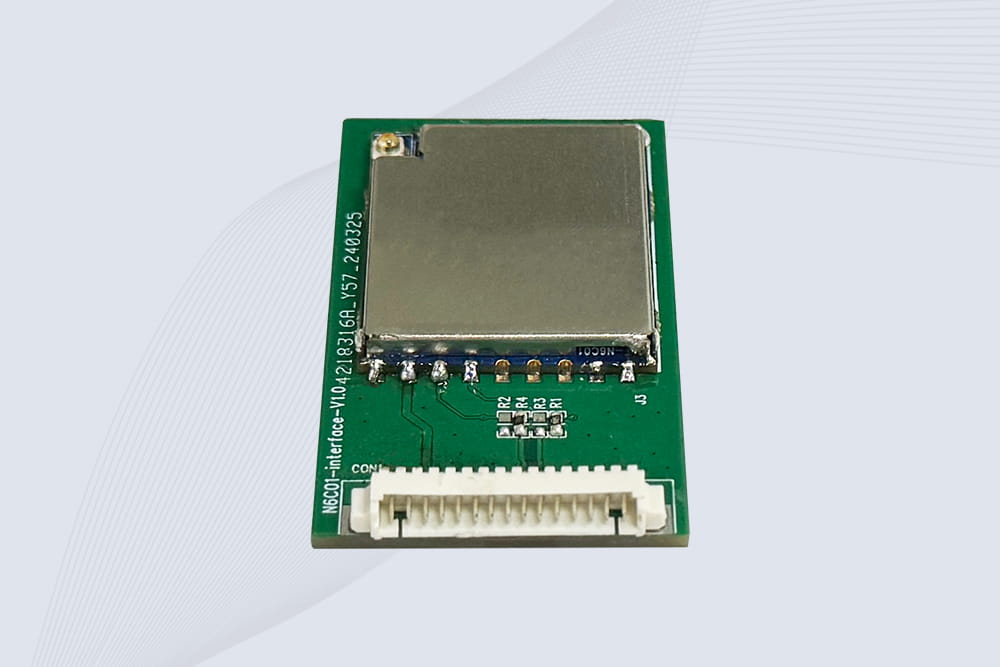
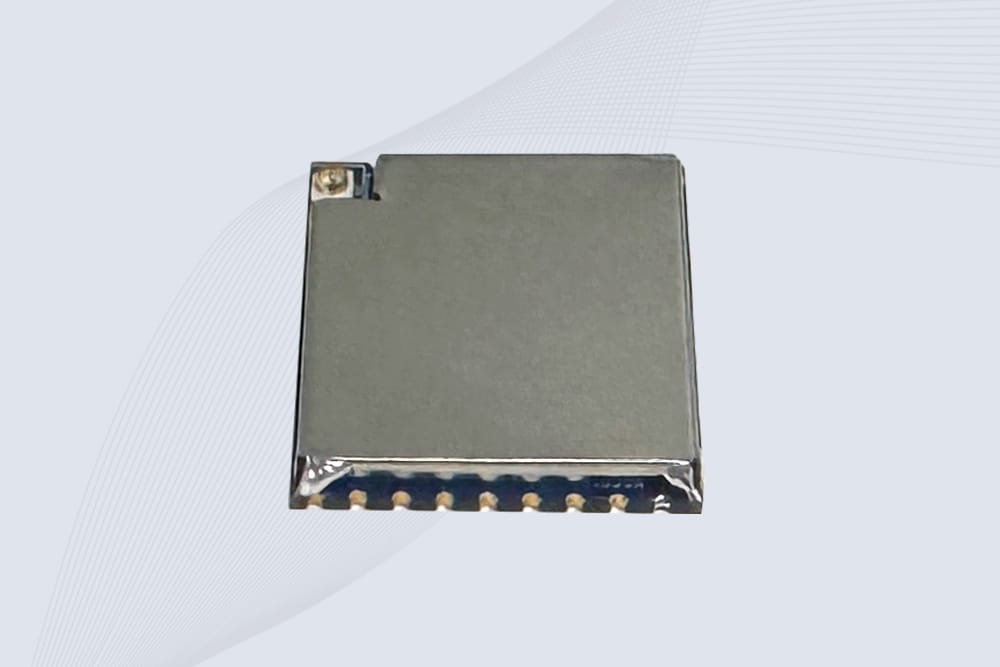
- RFID Module: The RC522 is the most common and beginner-friendly. You can find it from various suppliers; brands like CYKEO offer reliable modules that come with keychain tags or cards.
- LEDs: Any standard 5mm LEDs will do. I like to use different colors for different actions.
- Resistors: 220-ohm resistors for each LED to protect them from burning out.
- Jumper Wires & Breadboard: For making connections without soldering.
- RFID Tags/RFID Cards: Usually included with the module.
Pro tip from my experience: Get a few extra LEDs and resistors. They’re cheap, and it’s easy to accidentally fry one if you connect it wrong.
The Wiring: Getting Physical
This is where most people, including me, get tripped up at first. The RFID module has a bunch of pins, but connecting it is simpler than it looks.
For the RC522 RFID Module to Arduino:
- VCC to 3.3V (Crucial! Using 5V can damage it.)
- GND to GND
- SDA/SS to Digital Pin 10
- SCK to Digital Pin 13
- MOSI to Digital Pin 11
- MISO to Digital Pin 12
- RST to Digital Pin 9
For the LED(s):
Connect the longer leg (anode) of an LED to a chosen Arduino digital pin (like pin 2) through a 220-ohm resistor. Connect the shorter leg (cathode) directly to a GND pin.
My advice: Double-check the 3.3V connection for the RFID. It’s the most common wiring mistake. A neat breadboard layout saves a lot of debugging time later.
The Code: Making It Talk
The brain of the operation. You’ll need to install the MFRC522 by GithubCommunity library via the Arduino IDE’s Library Manager. Here’s a basic sketch to turn on an LED with a specific RFID tag.
cpp
#include <SPI.h>
#include <MFRC522.h>

#define RST_PIN 9
#define SS_PIN 10
#define LED_PIN 2 // LED connected to pin 2

MFRC522 mfrc522(SS_PIN, RST_PIN);

void setup() {
  Serial.begin(9600);
  SPI.begin();
  mfrc522.PCD_Init();
  pinMode(LED_PIN, OUTPUT);
  digitalWrite(LED_PIN, LOW);
  Serial.println("Bring your RFID tag close...");
}

void loop() {
  // Look for new tags
  if ( ! mfrc522.PICC_IsNewCardPresent()) {
    return;
  }
  // Read the tag
  if ( ! mfrc522.PICC_ReadCardSerial()) {
    return;
  }

  // Get the tag's UID and print it
  String tagUID = "";
  for (byte i = 0; i < mfrc522.uid.size; i++) {
    tagUID += String(mfrc522.uid.uidByte[i], HEX);
  }
  tagUID.toLowerCase(); // Ensure it's in lowercase
  Serial.print("Tag Scanned: ");
  Serial.println(tagUID);

  // Check if it's the "allowed" tag
  if (tagUID == "a1b2c3d4") { // REPLACE THIS with your own tag's UID!
    Serial.println("Access Granted - LED ON!");
    digitalWrite(LED_PIN, HIGH);
    delay(3000); // Keep LED on for 3 seconds
    digitalWrite(LED_PIN, LOW);
  } else {
    Serial.println("Access Denied.");
    // You could add a red LED or buzzer here for feedback
  }
  delay(500); // Small delay before next scan
}
How to find your tag’s UID: Upload the code, open the Serial Monitor (Ctrl+Shift+M), and scan your tag. The unique UID will appear. Copy and paste that into the if (tagUID == "...") line, replacing "a1b2c3d4".
From Basic to Cool: Project Ideas
Once you have the basic how to use RFID module with Arduino LED projects concept down, you can start building real things:
- Personalized Night Light: Program different tags for different family members to trigger a soft LED strip by their bed.
- Toolbox or Cabinet Lock Indicator: Use it to show if a cabinet is “locked” (red LED) or “unlocked” (green LED) based on which maintenance tag was scanned.
- Interactive Game or Quiz: Set up multiple tags as answers. A green LED lights up for correct answers, red for wrong ones. Kids love this.
- Simple Attendance System: Scan a tag, and an LED blinks while logging the time to the serial monitor or an SD card.
My first real project was a “secret document box” that would light up an internal LED only when my specific card was scanned. It wasn’t Fort Knox, but it was incredibly satisfying to make it work.
Troubleshooting Common Hiccups
- Module Doesn’t Respond: 99% of the time, it’s the wiring. Re-check if VCC is on 3.3V and all other pins match exactly.
- LED Doesn’t Light: Ensure the resistor is in place and the LED legs are in the correct orientation. Use the
blink example sketch to test the LED separately.
- Tag Not Recognized: Make sure you’re using the correct UID in the code. UIDs are case-sensitive hex strings.
- Weird Serial Output: Lower the baud rate in
Serial.begin() to 9600 if you see gibberish.
Patience is key. If you’re stuck, take a photo of your setup and ask on forums like the Arduino subreddit—the community is incredibly helpful.
RFID Module Recommendation
 Cykeo RFID IoT Solution Products R&D Manufacturer